
REAPER No Sound – How To Fix It! (Step-By-Step Guide)
If you are not hearing any audio output from REAPER, you can fix this by first checking all of your hardware, gear, and cable connections. If you are still having the issue, select Options>Preferences>Device in REAPER and select/adjust the settings of the desired audio system.
No Sound In REAPER
Producing music without being able to hear any audio from your DAW (Digital Audio Workstation) is obviously impossible.
There is nothing worse than sitting down to produce music and dealing with technical difficulties such as not being able to get any sound from REAPER.
In this step-by-step article, I will show you how to get sound to output from REAPER if you have an issue with it.
What You Will Need To Follow This Tutorial
The only thing you will need to follow in this tutorial is the REAPER DAW itself.
The only exception is if you need to replace a cable or other hardware component in your recording setup.
Step One – Checking Your Hardware/Connections
The first step for restoring sound in REAPER is double-checking all of your hardware and connections.
Cables
Start by checking your speaker cables, headphone cables, power cables, etc. A good way to check your cables is to test them out with other devices.
If you have a faulty cable, it could be causing your audio monitoring issues, so start by replacing it before moving on.
Speakers/Headphones
The next thing to check is the headphones or speakers you monitor with.
You can do this by testing them with another device or by using another app on your computer since REAPER is the audio issue here and not your whole computer.
Audio Interface
The final thing to test out is your audio interface.
To test your audio interface, simply play another source of audio other than your DAW through it to verify that it is working correctly.
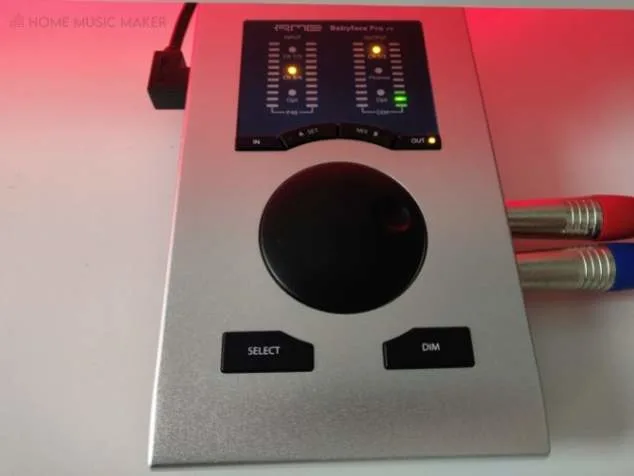
After you have tested out your cables, connections, speakers/headphones, and audio interface to verify that your issue is not audio hardware related, you can move on to the next step.
Step Two – Selecting Your Device/Changing Your Settings
The next step to solving your audio monitoring issue is changing around your REAPER preferences.
Start by clicking Options>Preferences>Device in REAPER, and then choose your audio system from the drop-down list.
If you do not see your device on the drop-down list, this indicates that your computer is not recognizing your audio device or that you need to download an audio driver for your device.
To fix this, find an instruction manual from the manufacturer and troubleshoot.
If it’s an audio driver issue, the manufacturer should provide you with a free download link.
To find a download link, start by checking the manufacturer’s website.
Step Three – Change Your Computer’s Settings
One last thing to consider when fixing a monitoring issue in REAPER is your computer’s audio settings.
It’s called something different on each operating system, but find your device’s audio or sound settings and make sure your computer recognizes your audio device and is connected.
If you go through these steps carefully and troubleshoot along the way, you will fix your audio monitoring issue in REAPER!
Why Can’t I Hear Anything In REAPER?
If you have all of your audio hardware, cables, and connections set up correctly, and you still can’t hear anything in REAPER, you probably need to assign your audio device in REAPER preferences.
Select Options>Preferences>Device and choose your audio device from the drop-down menu. If your device is not listed on this menu, you probably need to download an audio driver for your device. This will be available to you from the manufacturer.
If you complete this step and still can’t hear anything in REAPER, try opening up your computer’s audio or sound settings and make sure that your audio device is connected to and recognized by your computer.
How Do You Get Sound In REAPER?
You get sound in REAPER by properly setting up your computer, audio interface, speakers/headphones, and all cables and then configuring your settings in both REAPER and your computer.
Sometimes this process requires a bit of troubleshooting. Just take your time, be patient, and stick with it and you will figure out your sound issue in REAPER.
Does REAPER Support ASIO?
Yes, REAPER does support ASIO.
In fact, on my two previous computers that both ran Windows, I used ASIO as my only sound card/audio driver.
In my time using ASIO on these two computers, they fixed my latency issues and worked great with REAPER.
Here is a link to a free download for the ASIO version that I use.
How Do I Change Audio Output In REAPER?
You change audio output in REAPER by selecting Options>Preferences>Device and choosing your desired output device from the drop-down ‘Audio system‘ menu.
This is a quick and easy way to change your audio output in REAPER.
How Do I Enable Record Monitoring In REAPER?
To enable record monitoring in REAPER, toggle the ‘Record monitoring’ button on any given track until it is in the ‘ON’ position.
You can also select multiple tracks and change their monitoring settings simultaneously.
Check out the following guide to disable monitoring in REAPER.
Can You Use REAPER Without An Audio Interface?
Yes, you can use REAPER without having an audio interface. However, you will have a much harder time recording and properly monitoring in your home studio.
To use REAPER without an audio interface, you can use a USB microphone to record and headphones via your computer’s headphone jack to monitor.
However, keep in mind that it is ideal to have an audio interface for your studio setup.
Related Questions
What Is It that Other DAWs Have that REAPER Doesn’t?
The main thing that REAPER lacks that other DAWs such as Studio One, Logic Pro, and Pro Tools all have covered is a decent virtual instrument plugin collection.
While REAPER is an excellent DAW that you can use for all types of music production, it does not have a single virtual instrument plugin other than ‘ReaSynth,’ a low-quality synthesizer engine.
Does REAPER Have a Guitar Tuner?
While REAPER does not have a guitar-specific tuner, you can use the tuner on the ‘ReaTune’ plugin to tune your guitar.
This plugin is for vocal tuning, but you can still use it to tune other instruments.
What Are Some Features that You Really Like About REAPER?
Some of my favorite things about REAPER are its low price, its simple setup and workflow, and its customizability.
Not only is REAPER quite affordable compared to other DAWs and easy to use, but you can also customize its visual display, toolbars, and hotkeys to suit your music production and recording needs.
Click here for a complete guide on how to fix latency in REAPER.
Есть вопрос по Reaper Midi – нет звука при использовании инструментов!
У многих пользователей программой Reaper возникают подобные вопросы. Все дело в том, что музыкальный формат MIDI может подходить не для всех звуковых карт. В большинстве случаев, те карты, которые интегрированы в ваше «железо», этот формат по умолчанию НЕ поддерживают!
Чтобы установить себе звуковой драйвер для МИДИ-файлов, вам нужно:
1. Зайти на официальный сайт драйвера ASIO и скачать русский дистрибутив программы.
2. Установить на свой компьютер данный драйвер. Он по умолчанию станет в папку Program Files.
3. Запускаете программу Reaper, нажимаете в основном меню Ctrl+P.
В открывшейся панели настроек заходим в строку Device и выбираем из выпадающего окна драйвер Asio. Выглядеть это будет вот так:
Нажимаем кнопку Ок и теперь мы сможем пользоваться музыкальными инструментами без проблем и со звуком.
Почему не работает звук в Reaper и как исправить ситуацию
Reaper — это цифровая аудио станция (DAW) для записи и обработки звука на компьютере. Иногда пользователи могут столкнуться с ситуацией, когда звук не работает в Reaper. В данной статье мы рассмотрим, почему это может произойти и что можно сделать, чтобы исправить ситуацию.
Причины отсутствия звука в Reaper
- Неверно настроенный вход или выход звука. Если у вас есть несколько аудио устройств, например, встроенная звуковая карта и интерфейс для записи, возможно, что в Reaper выбран неверный вход или выход звука. Убедитесь, что в настройках Reaper выбрано правильное устройство ввода и вывода.
- Неправильные настройки звука на устройстве. Проверьте настройки звука на компьютере или устройстве записи, чтобы убедиться, что звук включен и громкость выставлена на уровне, достаточном для воспроизведения.
- Неправильно настроенные аудио-маршруты в Reaper. Если вы настраивали новый проект или меняли настройки маршрутов аудиосигнала, возможно, что вы неправильно настроили маршруты в Reaper. Проверьте настройки маршрутов и убедитесь, что сигнал идет к правильному выходу.
- Неисправность аудио устройства. В некоторых случаях проблема может быть связана с неисправностью аудио устройства, такого как звуковая карта или интерфейс записи. Попробуйте проверить устройство на другом компьютере или попробуйте другое аудиоустройство.
Как исправить отсутствие звука в Reaper
- Проверьте настройки входа/выхода. Откройте настройки Reaper и убедитесь, что в разделе "Audio" выбрано правильное устройство ввода и вывода.
- Проверьте настройки звука на устройстве. Убедитесь, что звук включен и громкость выставлена на уровне, достаточном для воспроизведения звука. Также убедитесь, что правильно настроен аудио-маршрут для данного устройства.
- Проверьте настройки маршрута аудио-сигнала. В разделе "Routing" настроек Reaper убедитесь, что сигнал идет к правильному выходу и что маршрут от устройства ввода к устройству вывода настроен правильно.
- Обновите драйверы звуковой карты или интерфейса записи. Если вы уверены, что проблема связана с аудиоустройством, попробуйте обновить драйверы звуковой карты или интерфейса записи.
Заключение
Отсутствие звука в Reaper может быть связано с различными причинами, но чаще всего ошибка связана с неправильными настройками входа/выхода или аудио-маршрутов. Чтобы исправить проблему, проверьте все настройки в соответствующих разделах в настройках Reaper и убедитесь, что аудиоустройство работает исправно.
Почему в reaper нет звука
Reddit and its partners use cookies and similar technologies to provide you with a better experience.
By accepting all cookies, you agree to our use of cookies to deliver and maintain our services and site, improve the quality of Reddit, personalize Reddit content and advertising, and measure the effectiveness of advertising.
By rejecting non-essential cookies, Reddit may still use certain cookies to ensure the proper functionality of our platform.
For more information, please see our Cookie Notice and our Privacy Policy .
Get the Reddit app
We are read-only as we reorganize and determine next course of action. In the meantime find us on https://forum.cockos.com.
Hi all. I've tried looking into this problem myself, but everyone who has this problem seems to have had a different cause, and I couldn't find a solution to mine after trying to look into it for at least 2 days.
I can't hear audio coming from my speakers no matter what I try to do. I've tried changing the output in the audio settings and none of the options worked. I've tried plugging in headphones. Didn't work. Tried changing the hardware output. Didn't work. I'm just trying to use my monitor's on-board speakers to see if this whole thing even works. It's not. Worst part is, it worked fine on my friend's laptop when I installed it all on there to record stuff. But I can't just take his laptop for a few days. I know it's an output problem because if I render it and listen the audio is all there.