
If your board does not appear on a port in Arduino IDE
Learn what to do if your board is missing from the board selector or Tools > Port menu.
Before you begin
- Ensure you’ve connected your board with a working data USB cable.
- Check that your device is powered. One or more more LEDs should be lit.
- In earlier versions of Arduino IDE 2, the Tools > Port menu option would only be displayed if at least one device was detected on a port. This was fixed in version 2.0.4 [1] .
- Classic Nano boards and some clone boards with generic USB chips will show up as “Unknown” in the board selector. When selecting an “Unknown” port you will be prompted to select the board type manually. Alternatively, select your board in the Tools > Board menu.
- If you’re using a classic Arduino Nano, you may need to manually install FTDI drivers.
- If you’re using an Arduino-based “clone” board with a CH340 USB chip, you may need to manually install CH340 drivers.
In this article
If there are “Unknown” devices in the board selector and without a board name in the Tools > Port menu
Arduino IDE will list detected serial ports in the board selector and Tools > Port menu.
- If Arduino IDE is able to identify a device as an Arduino board, it will the board name instead of “Unknown” in the board selector. In the Tools > Port menu, the board name will appear after the port name, enclosed by parentheses.
- In some cases, the port information is not sufficient to determine the type of board that’s connected, or if the connected device is a compatible board at alL. In this case, it will appear as an “Unknown” device in the board selector and show only the port name in the Tools > Port menu.
This example shows the board selector and Tools > Port menu on Windows when an Arduino UNO board and one other unidentified device is connected:
The types of unidentified ports shown by Arduino IDE can be grouped in two categories:
- Arduino-compatible boards that use generic USB chips:
- The “classic” Arduino Nano, which uses a FTDI USB chip.
- Various “clone” board with generic USB chips such as the CH340.
- Some non-Arduino devices with generic USB chips.
- Some Bluetooth ports.
- Debug ports.
Note: If you have many unidentified ports showing up in the list, consider disconnecting any boards and peripherals you don’t need from your computer. Then, use this procedure to see whether your board is being detected on any of the ports.
Disconnect and reconnect your board to check its port
Using the board selector:
Disconnect your board from your computer.
Open the board selector menu.
Connect your board to your computer.
If you’re using IDE 1, the board selector won’t be available. Use the Tools > Port menu instead:
Disconnect your board from your computer.
Open the Tools > Port menu. Some ports may still be listed. Take note of this, and close the menu.
Connect your board to your computer.
Open the Tools > Port menu. The port your board is connected to should now appear as a new port in the list.
Configure an unidentified board
If you’ve determined which port belongs to your board:
Using the board selector:
Open the board selector.
Select the “Unknown” board you want to use.
In the pop-up “Select Other Board and Port” menu, select the board from the list.
Using the Tools > Board menu:
Open the Tools > Board menu.
Choose the board you want to use.
If your board does not appear on any port
Note: If the Tools > Port menu is open, you need to close and re-open it for the list to refresh.
If you’ve determined that none of the listed ports belongs to your board, or of no ports are listed at all, check the following:
Check board connections
A common reason for the board not appearing on a port is a problem with the USB connection:
- The board needs to be connected to your computer with a data USB cable.
- Make sure the USB cable is not damaged. Test your cable with a different device, or try using a different cable.
- Try using a different USB port on your computer.
- If possible, connect the board directly to your computer instead of a through a hub.
- Remove any connections to the 0(RX) and 1(TX) pins when uploading code.
Install missing drivers
Some boards require special drivers for serial communication:
- If you’re using a classic Nano, install the FTDI drivers.
- If you’re using a “clone” board with a CH340 USB chip, you may need to manually install CH340 drivers.
Try a bootloader reset if your board supports it
The board may be stuck in a state where it cannot communicate on the port. On some boards (such as those of the MKR Family and newer Nano boards), pressing the RESET button twice in quick succession will put the board in bootloader mode. Instead of running a sketch, the Arduino will wait until a sketch is uploaded. While in bootloader mode, an orange LED will fade in and out.
Find the reset button on the board.
Click the button two times in succession.
Check the board selector or Tools > Port again.
Check for additional system information
If Arduino IDE is not displaying a port for your board, you may still get some information by using a dedicated software utility:
- Open the Device Manager by searching for it in the start menu. You can also try right-clicking the Start button and choosing Device Manager.
- In the Device Manager, open the Other Devices section.
- Review the list of devices.
- Press ⌘ + Space to open Spotlight. Search for the System Information app and open it.
- Select the Hardware > USB section.
- Review the list of USB devices.
Use a device manager of your choice, such as hardinfo.
To install and use hardinfo, follow these steps:
- Open Terminal and run sudo apt install hardinfo .
- Wait for the installation to complete, then run the hardinfo command.
- Check Devices > USB Devices
- Review the list of USB devices.
Here are some cases to look out for:
Missing drivers can cause your “classic” Nano board to be recognized as “USB Serial Port” , or some other generic name.
If your board is an UNO or Mega board, missing or corrupted USB-to-Serial firmware may cause the board to be recognized as any of the following:
- Unknown Device
- Unknown USB Device
- Composite Device
- USB Device
- ATmega16u2 DFU
- Atmega8U2 DFU
If your board is listed with one of these names you may resolve the issue by flashing the USB-to-serial firmware in DFU mode.
Arduino nano Serial port not recognized
First sorry for my bad english, not my native lenguage.
Today I started working on my Arduino nano (first time used). When plugged for the first time the «L» led started blinking, after that I tried to write a simple program but I noticed that the «Port» option on the Arduino IDE was Gray. So I couldn’t choose the port. After that I searched A LOT but nothing seems to work.
While trying to test if the problem was the Arduino and not the PC, I make a simple circuit with 1 LED, 1 resistor of 1Kohm, and a breadboard. I connected the 5V pin to the LED and GNG to the other point, And when I did this the «L» LED stopped blinking forever. I am 100% sure that I did not make a short circuit. ¿Maybe the breadboard is in a bad state?
-Windows 10.
-The port doesn’t appear at Device manager (tried every port of my notebook).
-The «POW» led is ON when I plug the USB.
— The Arduino is a clone (chip CH340G).So now I don’t know if the problem is the port or if the Arduino Nano is dead because of a possible short circuit between 5V and GND pins.
Arduino COM port not found
For the past week I have been programming an Arduino Uno with a computer running Windows 7. When I first started, I found the device on COM6 and was able to upload code no problem. Recently it suddenly stopped receiving code under the error:
Serial port ‘COM6’ not found. Did you select the right one from the Tools > Serial Port menu?
The Serial port menu though is grayed out. Research has told me to open up Device Manager and update drivers but there is no other devices tab in my Device Manager. The Arduino is run off the power of the USB cable and runs the code I uploaded a few days ago just fine. What can I do to be able to upload code to the Arduino?
Update:
I installed the Arduino software on another computer and it does not recognize the Arduino either. One of the comments indicates that this could be a problem with the FTDI chip. How can I test if this is the case, and if it is, can I fix it?
Проблема #2: IDE Arduino не находит COM-порт
Это ситуация, когда вы подключили ESP32 к компьютеру, но не можете найти в IDE Arduino порт, к которому подключена ESP32, в результате чего меню «Порт» (Port) просто недоступно для выбора.
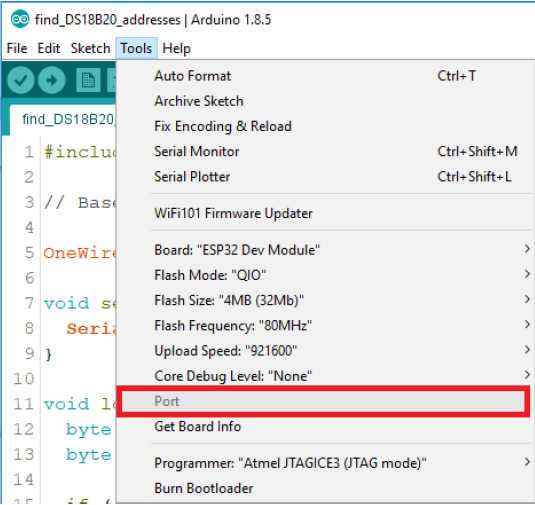
Эта проблема может быть вызвана двумя причинами:
- у вас не установлены USB-драйверы;
- в вашем USB-кабеле нет проводов для передачи данных.
- Если вы не видите COM-порт, к которому подключена ESP32, зачастую это значит, что на вашем ПК не установлены USB-драйверы. Внимательно взгляните на чип, расположенный рядом с регулятором напряжения, и найдите его название.
На плате DOIT ESP32 DEVKIT V1 этим чипом является CP2102.
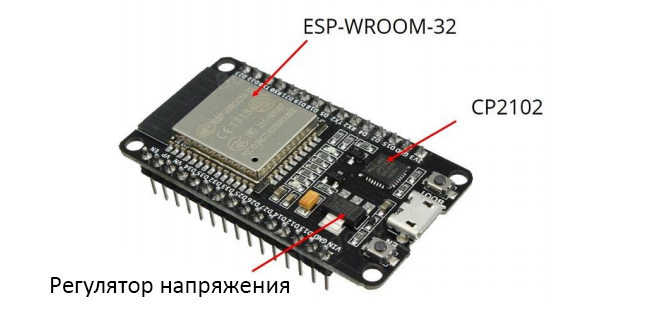
Откройте Google, найдите в нем драйверы для своего чипа и установите их в свою ОС.
Драйверы для чипа CP2102 можно скачать на сайте Silicon Labs.
Установив драйверы, перезапустите IDE Arduino. Теперь в меню «Инструменты» > «Порт» (Tools > Port) должен появиться COM-порт, к которому подключена ваша ESP32-плата.