
HDMI in и HDMI out — что это такое и для чего нужно
Я уже публиковал статью про то, для чего нужен HDMI в телевизоре или мониторе, можете ознакомиться. А в данной записи рассмотрим, что такое HDMI in и HDMI out и для чего они нужны.
HDMI — это порт (интерфейс), по специальному протоколу между двумя устройствами в которых стоят порты HDMI передаётся видео. Есть два типа портов. HDMI out (выход HDMI), устанавливается в устройствах которые передают видео (пример плеер или компьютер) и HDMI in (вход HDMI) стоят в устройствах принимающих видео (TV, мониторы).
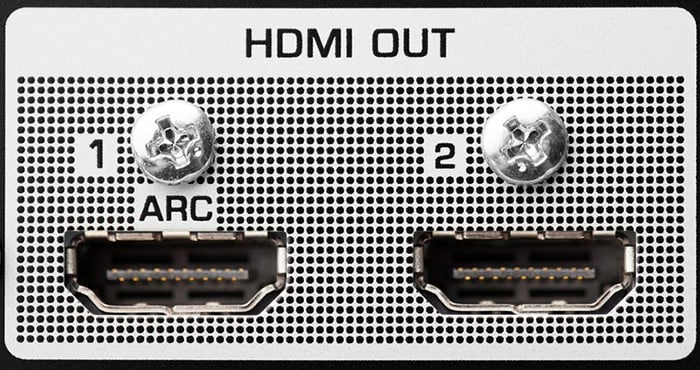
Выше снимок для примера с удлинителем HDMI по витой паре. Как вы видите, порты HDMI in и HDMI out подписаны, а внешне они одинаково выглядят. Исходя из этого у многих пользователей с тем или иным устройством при наличии HDMI порта может возникнуть вопрос, как определить вход или выход HDMI разъёма, например на ноутбуке? Так вот, сообщаю вам, что на ноутбуках почти на всех — HDMI out (выход). То есть используется для подключения к внешнему монитору или телевизору. Конечно существуют ноутбуки с HDMI in, но их крайне мало, это не распространено. Но чтобы узнать наверняка — надо подать сигнал на порт HDMI ноутбука и проверить, либо искать описание в спецификации на сайте производителя.
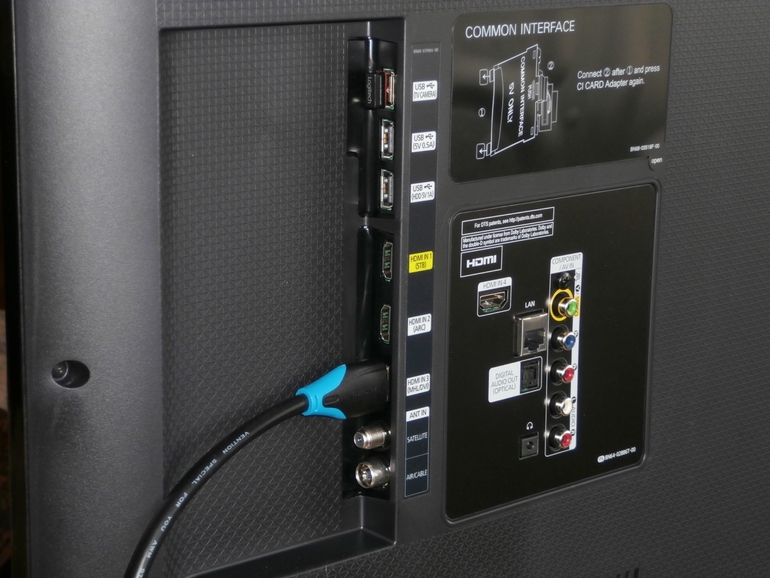
Ещё при изучении разъёмов, расположенных на ТВ, может быть указано, например, наличие 4 HDMI разъёмов, HDMI in (HDMI вход). При более детальном изучении оказывается, что разъёмы HDMI, к примеру на телеках Samsung имеют в скобках и дополнительную маркировку STB, DVI, ARC, MHL, что это? И зачем применяется такое обозначение. Давайте и это разберём.

Как правило все разъёмы в TV имеют абсолютно одинаковую функциональность и деление на типы (STB, MHL, ARC, DVI) есть чисто условное (кроме MHL) и предназначено для облегчения выбора юзеру куда, что включить, к примеру видеоплеер. Для того что бы разъёмы имели разное назначение, один к примеру разъём должен быть стандарта 1.3, а другой 1.4 лишь в этом случае они будут иметь различную функциональность. Хотя в некоторых производителей действительно встречаются в одном телеке различные версии HDMI.
MHL — это дополнительный протокол передачи видео от мобильных устройств на ТВ. Преобразование протокола передачи USB в HDMI). Если HDMI не поддерживает протокол MHL видео возможно передать с использованием активного адаптера.
Стандарт HDMI зависит от типа применяемого контроллера для обработки сигнала (версия HDMI).
Рассмотрим таблицу возможностей HDMI разных версий от 1.0 до 2.1

Сам разъём рассчитан для передачи мультимедиа, а проще сказать цифровых видео и аудио сигналов с 1-го устройства на другое.
1) HDMI STB . Данный вход HDMI имеющий обозначение HDMI in1 (STB) рассчитан для подключение приставок, к примеру IP TV, ресиверов игровых игровых консолей. Но к этому входу также можно подключать любое устройство. HDMI STB это просто надпись помогающая определиться юзеру с портом к которому можно подключить ресивер, плеер, игровую консоль.

2) HDMI DVI . Данное подключение HDMI in2 (DVI) предназначено для подключения к ТВ компьютера, а проще сказать — юзать в качестве монитора телек. Особенностью этого подключения есть то что по DVI звук не передаётся. В HDMI стандарта 1.4, 2.0 передача звука реализована. Порт HDMI поддерживает передачу звука, но порт DVI на PC не поддерживает. HDMI DVI обыкновенный порт, надпись лишь в качестве помощи при подключении. К этому порту можно подключать любое устройство.

3) HDMI ARC . Подключение HDMI in3 (ARC) audio return channel, значится стандартным, начиная с версии HDMI 1.4, по кабелю HDMI помимо видео сигнала передаётся обратно от телек. к колонкам также аудио сигнал, так что можно выводить с телек. и звук. Эту возможность поддерживают все порты HDMI начиная с версии 1.4. Но бывают случаи, когда производитель микросхем HDMI, для удешевления производства, обратный аудио канал делает лишь в одном порту. Это редко но бывает. Но по правилам если порт стандарта HDMI 1.4 или более поздняя версия все порты должны поддерживать ARC.

В отличие от предыдущих версий, когда для вывода звука необходимо было юзать внешнюю акустику. Обратный канал позволят принимать к примеру сигнал с эфира и вывести звук через HDMI на подключенную акустику, но в не сжатом формате лишь стерео. Формат звука 5.1 передаётся лишь в сжатом формате до версии HDMI 2.1.
4) HDMI MHL . Подключение HDMI in4 (MHL) mobile high-definition link, предназначено для подключения к ТВ. смартфона и просмотра на телевизоре фото или видео прямо со смартфона. Данное подключение было реализовано для стыка HDMI телевизора и USB смартфона. Функция работает при поддержке телевизором и смартфоном подключения MHL, в этом случае для передачи видео необходим пассивный кабель и при этом возможно управлять смартфоном при помощи дистанционки от телека. Если, к примеру, HDMI в TV не поддерживает MHL, то смартфон также можно подключить, но надо юзать активный адаптер с внешним питанием, в этом случае видео смотреть можно, но нельзя управлять смартфоном дистанционкой от телека.
Подключение MHL даёт возможность подключать телефон к телек. без дополнительного программного обеспечения. HDMI MHL имеет дополнительный контроллер который производит преобразование сигнала с USB телефона в HDMI и наоборот.
What is HDMI and what HDMI port do I have?

HDMI ports are a staple of TVs, laptops, set-top boxes, consoles, soundbars and more. However, as there are so many variations, it’s sometimes hard to translate exactly what all the terms, version numbers and specs mean for your viewing experience.
Let’s start with the basics – what is HDMI?
HDMI stands for High Definition Multimedia Interface. It is an HD signal that is most frequently used to transfer audio and visual content from one device to another. There are different sized HDMI ports, including mini-HDMI and micro-HDMI. However, the majority of the time, the port will be the standard full size.
You’ll find that devices often have either an output (HDMI out) or an input (HDMI in). The basic differences between these two are that outputs are designed to feed the audio and visual signals, whilst an input is designed to receive them. So, for example, you’d feed data from your console (HDMI out) to your TV or monitor (HDMI in).
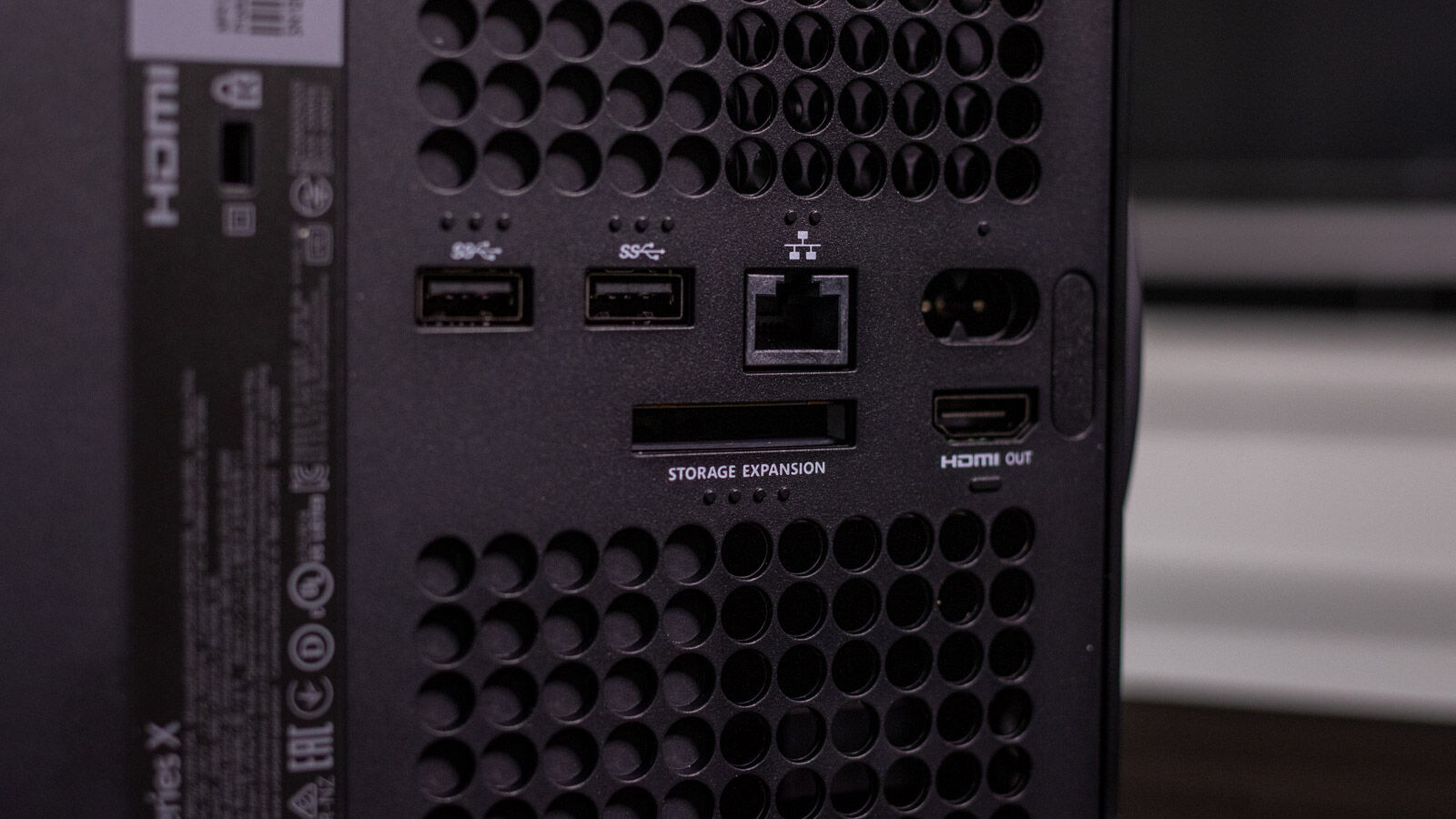
Your port should be labelled. If it’s not, it should be fairly intuitive as to which one it is, but check your product manual or the manufacturer’s website if you’re not sure. The cable is normally identical at both ends so it shouldn’t matter too much. As you can see below on the picture of the Xbox Series X, the HDMI out port is clearly labelled as such.
Most modern TVs will have multiple HDMI ports. If you have an older TV or lots of devices, you may have more devices than ports. You can however get around this by using an HDMI splitter and/or an HDMI switcher.
You can also read about the differences between DisplayPort and HDMI. If you want a TV with a good range of ports, then you can find options in our roundups of the best TVs and best budget TVs.
What the different HDMI versions mean
There are different versions of HDMI ports, which usually varies depending on how old your model is. And it’s not very obvious because they’re rarely labelled and use no colour-coding system as USB has done in the past.
The type of HDMI port is indicated by the number that follows it. To break this down into the simplest terms, this number mainly translates to the highest video resolution which it can support, as well as the refresh rate.
There are other differences but it starts to get complicated and typically won’t make a difference to the average user.
Here’s a breakdown of the key specs of HDMI versions:
- HDMI 1.0-1.1: Up to 1080p at 60Hz
- HDMI 1.2-1.2a: Up to 1080p at 60Hz
- HDMI 1.3-1.4b: Up to 4K at 30Hz
- HDMI 2.0-2.0b: Up to 4K at 60Hz
- HDMI 2.1: Up to 4K at 120Hz and 8K at 120Hz
Most tech products with HDMI have been at least HDMI 1.4 for many years. If your device has HDMI 1.4, you’ll still be able to get 4K content, but not at the highest refresh rate.
Keep in mind also that to get the highest resolution and refresh rate, both your devices need to have the same HDMI port. For example, if you have a PS5 (which can output 4K at 120Hz via HDMI 2.1), but your TV only has HDMI 1.4, you’ll only be able to get the maximum resolution available on HDMI 1.4.
The console will still work, but you won’t get the crazy resolution figures that PlayStation advertises. You can find out more in our console combability guide.
Some TVs also have HDMI ARC ports. These are designed for use with soundbars (ARC stands for ‘Audio Return Channel) and are used in place of an optical cable. You can read more about these in our HDMI ARC explainer article.
What HDMI port do I have?
If your port isn’t labelled on your TV the only way to know your exact port is either by consulting the product manual, which will have either come with the packaging, or can likely be found on the manufacturer’s website.
The specs sheet may also be found on the website that you bought the item from. The example below shows that it can handle 4K at 60Hz rather than the HDMI version number.

What HDMI cable do I need?
The final thing you’ll need to get the highest resolution you want from your TV is the correct HDMI cable. There’s lots of different types of cables floating around, from the standard HDMI cable to the 8K Ultra High Speed HDMI cable. Don’t let the marketing or naming confuse you – the most important things you need to know are what resolution, Hz and speeds it can handle.
For example, if you want 4K resolution at 120Hz, the product listing for the cable must list this. You’ll also need a minimum speed of 18Gbs to keep up with 4K. Sellers on Amazon usually list these specs in the title for the product, but otherwise you should be able to find it on the listing. The bog ‘standard’ HDMI cable won’t be enough if you have a high-spec screen and want the best resolution from it.

Your TV will likely come with the correct cable that you need, and many connecting devices like consoles also will. However, if you misplace this or don’t have the one you need, all of these cables should be available from most tech retailers such as Amazon UK, Currys, Argos and more.
If you want to know more about HDMI cables work and need some recommendations, then take a look at our roundup of the best HDMI cables you can buy right now.
HDMI Cables & Connections: All You Need to Know

You will find an HDMI port on most modern AV devices — but is it the best connector to use? Learn all about HDMI cables, connections and adapters.

An HDMI connector is the standard interface for connecting modern audio-visual devices together.
With most home theater equipment, you can use it to send almost any type of video and audio signal.
However, many people are confused by HDMI connections, so this article looks at some common issues and explains them in more detail.
When should you use HDMI, and what are the supported video and audio formats?
Plus, there are a few different cable standards – so which one should you be looking for?
Read on to find answers to all these questions and more.
What is HDMI?
HDMI is used for sending video and audio signals between modern AV devices.
You will find this connector on many home technology products made in the last few years – including TVs, display monitors, soundbars, AV receivers, game consoles, projectors and computers.
If a device needs to send or receive video and audio, then chances are it will have an HDMI port.
HDMI supports all modern video formats, including high-definition signals and Ultra HD 4K and 8K.
For audio, it will send anything from simple 2-channel PCM stereo audio to 8-channel uncompressed digital audio formats such as Dolby TrueHD, DTS-HD Master Audio and Dolby Atmos.
Over the last few years, there have been several different versions of the HDMI specification, and the most widespread versions are HDMI v.1.4, HDMI 2.0 and the newer HDMI 2.1.
The new HDMI 2.1 specification supports video resolutions up to 4K/120p and 8K/60p. Plus, it is required for new gaming features like VRR, ALLM and QMS.
You should be aware that the older versions have limitations with their supported features.
Therefore, the HDMI inputs and outputs on older devices may not have the same functionality as newer ones.
What Does the HDMI Connector Look Like?
The HDMI connector on the back of your TV or Blu-ray player looks like this:
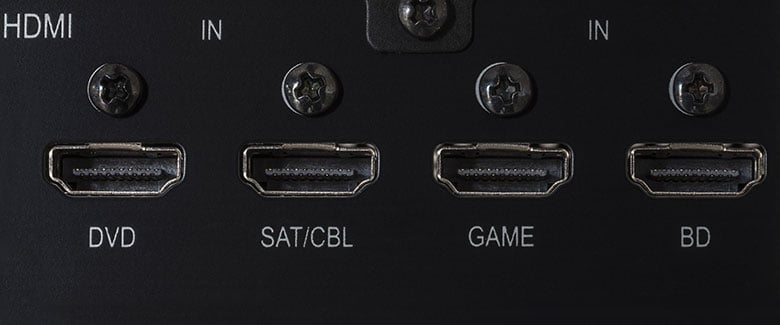
The HDMI connector on the back of your TV or Blu-ray player looks like this:
The connection is designed so that HDMI cables will only fit one way around.
HDMI ports are usually either inputs or outputs.
The simple difference is that if the device receives a signal – like a computer monitor – it will have an HDMI input.
And, if it sends a signal – like a Blu-ray player – it will have an HDMI output.
However, some HDMI ports can both send and receive signals simultaneously.
An example of this is an HDMI ARC connector on the back of a TV – this can receive a video signal from an AV receiver and send audio back to the receiver from the TV – all with one cable.
You don’t really need to know all this, but if you understand if a device is sending or receiving a signal, it can make it easier to wire your system together.
The examples in the picture above are HDMI inputs on the back of an AV receiver.
It is usual for a receiver to have several HDMI inputs, as this is where you connect all the HDMI outputs from your devices.
Even though the input is labeled with a device name – it doesn’t matter what device you connect to it – they are all the same.
The names just provide a guide and make it easier to remember where everything is connected.
When selecting that input, you will also see this name on the receiver’s front display; however, you can change this name in many receivers and call it whatever you like.
What Does the HDMI Cable Look Like?
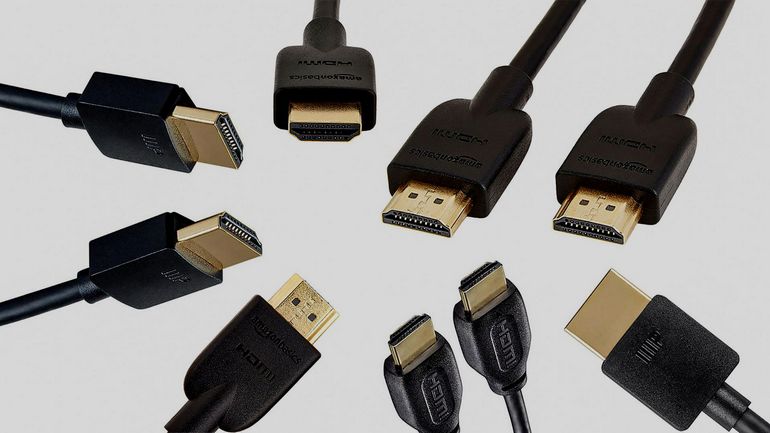
The HDMI cable that is used to connect two devices looks like this:
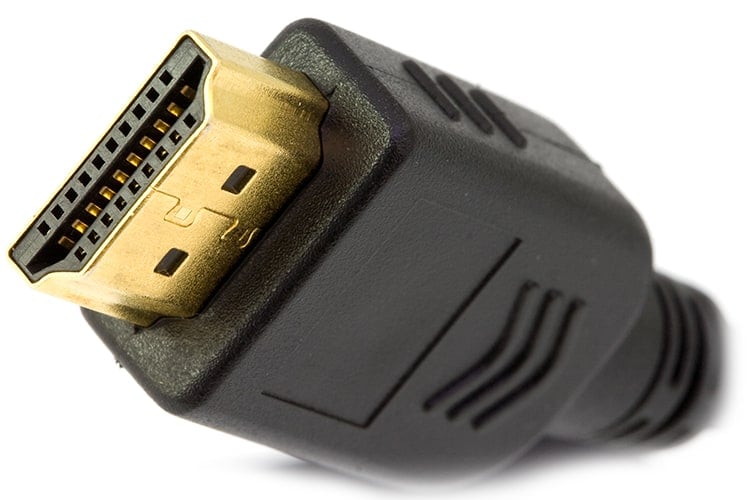
You just need one cable between devices to transfer the sound and the picture.
Although some brands come with gold-plated HDMI connectors, the HDMI connectors are often silver.
The color or material of the connector won’t make any noticeable difference in performance.
The cable will usually have a flexible plastic material protecting the core wiring.
However, some brands use braided nylon cables, which can prove easier to install in tight spaces – or may just look better to you.
What Are the Different Versions of HDMI?
HDMI 1.0
- The release version of the HDMI standard – an audio and video interface that allowed the transfer of standard and high-definition video
- Up to 8 channels of uncompressed digital audio
- Data transfer up to 4.9 Gb per second
- Playback of standard Blu-ray disc video and audio at full resolution
HDMI 1.1
- Added support for DVD Audio
HDMI 1.2 and 1.2a
- Support for the One Bit Audio format such as SACD (up to 8 channels)
- Fully specified support for Consumer Electronics Control (CEC)
HDMI 1.3
- Increased bandwidth to 10.2 Gb per second.
- Improved color – support for Deep Colour and x.v.Colour. These provide increased color depths and the ability to reproduce any color the eye can see
- Lip sync – allows devices to automatically synchronize the picture and sound
- CEC extensions for controlling consumer electronic devices
- Support for streaming high-definition Dolby TrueHD and DTS-HD Master Audio to an AV receiver for decoding
- Defined two standards for HDMI cables – category 1 and 2 (see below)
HDMI 1.4
- Support for increased resolutions – up to 3840 x 2160p at 25/30Hz and 4096 x 2160p at 24Hz
- Support for the audio return channel (ARC). Allows the TV to send audio from an HDMI connection to an AV receiver or soundbar. Therefore, allowing an easy way to send this audio to a home theater sound system
- Allowed for an Ethernet connection over HDMI – therefore allowing an internet or home network connection through the cables
- Support for 3D TV signals
HDMI 2.0
- Supported bandwidth increased to 18Gb per second
- Added support for 4K Ultra HD resolutions at 60 frames per second
- Support for the BT.2020 standard for UHD TVs
- Support for up to 32 audio channels
- Support for up to 1536 kHz audio resolution
- Support for dual video streams to the same screen
- Added support for 21:9 aspect ratios
- The minimum standard required for HDCP 2.2 (copy protection for 4K video). However, if a device is HDMI 2.0, it doesn’t necessarily mean it supports HDCP 2.2. Unless there is HDCP 2.2 through the whole playback chain, then 4K video won’t play
- No need for a new cable; just use a category 1 or 2 cable
HDMI 2.0a
- Added support for High Dynamic Range (HDR) video
HDMI 2.0b
- Added support for Hybrid Log-Gamma (HLG) video – a form of HDR
HDMI 2.1
- Added support for Dynamic HDR
- Support for 4K/120 and 8K/120 video resolutions
- Support for Display Stream Compression (DSC). This allows for Type A (uncompressed) and Type B (compressed) video
- Specified a new cable type – 48G. This supports a bandwidth of 46 Gb/s and uses HDMI type A (standard), C (mini) and D (micro) connectors
- Specified a new Enhanced Audio Return Channel (eARC). Allows the transfer of uncompressed and object-based audio from the TV to a home theater system via an existing HDMI connection. eARC also supports a new Auto Lip Sync feature.
- Support for enhanced gaming and media features such as:
- Variable Refresh Rate (VRR): allows the refresh rate of the screen to change to match how quickly the player can produce the content. This reduces lag and stutter during gaming. All devices in the chain need to support this.
- Auto Low Latency Mode (ALLM): when compatible devices are connected, they will automatically switch to their gaming modes. This means that they enable their best low latency settings for gaming. All devices in the chain need to support this.
- Quick Media Switching (QMS): removes any delay before content is displayed. For example, you may get a temporary black screen when you switch from one video source to another – especially if you are switching video resolutions or frame rates. QMS stops this black screen from happening. All devices in the chain need to support this.
- Quick Frame Transport (QFT): allows the source device to send video frames to the TV as soon as they are produced – rather than wait until the display device is ready for it. This reduces latency when gaming. All devices in the chain need to support this.
What Audio Formats Does HDMI Support?
Any device with HDMI must support the minimum standard of uncompressed stereo LPCM audio.
Any other formats are optional – so the actual audio types available to you will be limited by the hardware you are using.
The HDMI specification allows for 8-channels of compressed and uncompressed audio at 1-bit, 16-bit, 20-bit and 24-bit – at sample rates of 32kHz, 44.1 kHz, 48 kHz, 88.2 kHz, 96 kHz, 176.4 kHz and 192 kHz.
Support for 32-channels of audio was introduced in HDMI 2.0.
In practice, that means that you will have access to all of the popular modern audio formats.
HDMI supports all the common stereo and multichannel audio formats for modern TV, movie and music content:
- LPCM (2-ch to 8-ch)
- Dolby Digital
- Dolby Digital Plus
- Dolby TrueHD (since version 1.3)
- Dolby Atmos
- DTS
- DTS-ES
- DTS 96/24
- DTS Express
- DTS-HD High Resolution
- DTS-HD Master Audio (since version 1.3)
- DTS:X
- DVD-A (since version 1.1)
- DSD (since version 1.2)
Many other audio formats, such as FLAC, ALAC, and WAV, will also be available if supported by your hardware.
If you need something specific, you should check that device’s documentation. It won’t be HDMI limiting you; it will be the design of your device.
All HDMI cable types will transfer all the audio formats within the specification.
If you are unsure, the guide to surround sound formats explains all about Dolby and DTS audio.
What Video Formats Does HDMI Support?
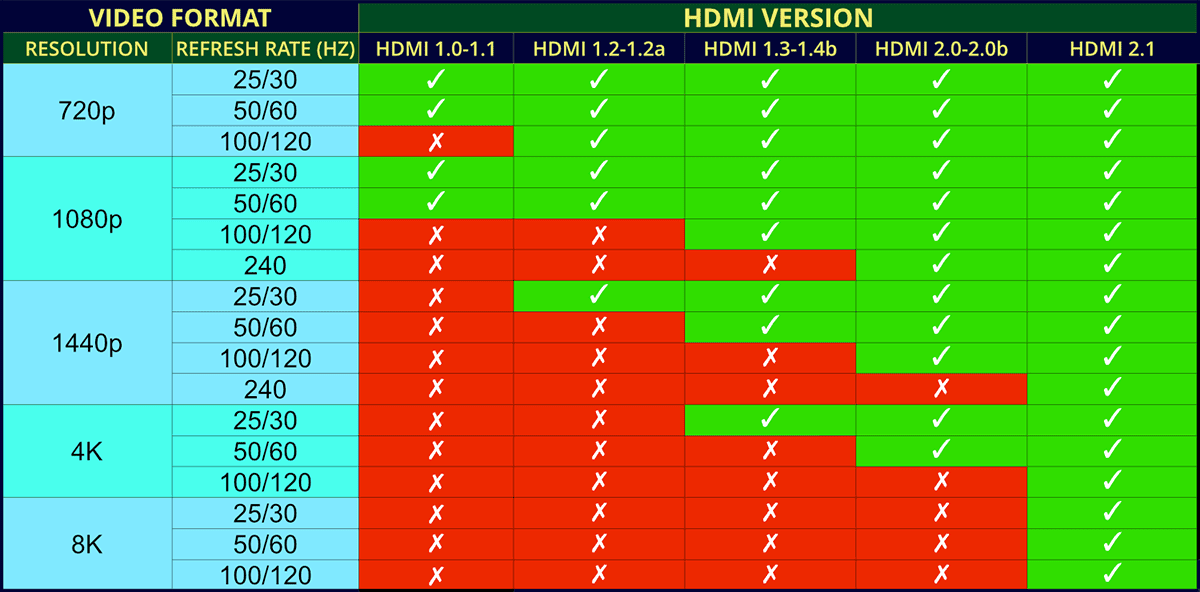
HDMI Support for Common TV Video Formats
Source: Wikipedia & HDMI.org
As the HDMI specification is updated, more video formats are supported.
Your hardware must support the HDMI version to use a specific video resolution.
Remember, manufacturers may still limit some video formats on their devices. They may also add support for a format that isn’t in the HDMI specification – as long as it is within the bandwidth limits of that version.
Always check the manual for your device to see what it can do.
If you are unsure what the video formats mean, see the guide to TV resolutions or what is the refresh rate of your TV?
HDMI 1.0-1.1 Video Formats
- 720p@25/30/50/60Hz
- 1080p@25/30/50/60Hz
HDMI 1.2-1.2a Video Formats
- 720p@100/120Hz
- 1440p@25/30Hz
HDMI 1.3-1.4b Video Formats
- 1080p@100/120Hz
- 1440p@50/60Hz
- 4K@25/30Hz
HDMI 2.0-2.0b Video Formats
- 1080p@240Hz
- 1440p@100/120Hz
- 4K@50/60Hz
- 5K@25/30Hz
HDMI 2.1 Video Formats
- 1440p@240Hz
- 4K@100/120Hz
- 5K@50/60/100/120Hz
- 8K@50/60/100/120Hz
- 10K@50/60/100/120Hz
How to Choose the Best HDMI Cable
When you are looking to buy a new cable, there are a seemingly endless number of variations to choose from. It can seem impossible to choose the best HDMI cable.
There are different colors, lengths, materials, specifications, and prices.
It can make your head spin.
Fortunately, it’s not too tricky once you just concentrate on the important stuff.
Think about these points to find the best HDMI cable for you:
- Check the specification: Most people just need a category 2 high-speed HDMI cable these days. This will ensure that the cable has been certified to transmit data up to 4K resolutions – and all current audio formats. If you want to run the highest rates at 8K, you might need an Ultra High Speed HDMI cable.
- Materials: Most cables come with a standard protective PVC plastic exterior and shielding to prevent signal interference. Some brands will come with a nylon braided cord, making the cable more flexible and easier to move in tight spaces. Otherwise, it just makes it looks nice. It shouldn’t matter either way for most people, but a more flexible and smaller cable may ease installation.
- Price: You can break the bank and buy a costly one if you like. However, it won’t perform any better than a good-quality budget cable. The AmazonBasics range will probably be sufficient – or if you want a braided model, then these Twisted Veins HDMI cables are popular.
- Length: Very important. Please take a few seconds to think about where the cable will need to run and how far that will be. As a rule of thumb, the shorter, the better – as really long wires can negatively affect the signal. If you get one too long, it might be hard to run the cable in a confined area. Get one too short and…
- Color: That’s up to you – it won’t make much difference to the sound and picture! Some people will go for a discreet color that can be easily camouflaged among their equipment. Most will just get a black one!
What Are the Different Speeds of HDMI Cable?
Be careful when you are buying an HDMI cable. Some brands like to make out that their cable is faster than the rest and use many exciting ways to describe them.
There are currently only 3 official specifications for the speed of an HDMI cable:
- Category 1: Standard Speed – tested up to 2.2 Gb per second –
- Category 2: High Speed – tested up to 10.2 Gb per second
- Category 3: Ultra High Speed – tested up to 48 Gb per second
Categories 1 and 2 have two different types of cable – an ordinary cable and one ‘with Ethernet.’
Internally, HDMI cables have 4 shielded twisted pairs and 7 separate wires. The ‘with Ethernet’ versions use two of the 7 individual wires to create an extra twisted pair conductor.
A Category 3 HDMI cable includes the Ethernet wiring as standard.
Category 1 HDMI Cables
A ‘standard speed’ category 1 cable has been tested at speeds of 75 MHz.
An HDMI cable has 3 data pairs of wire that transmit the signal, and the two different categories of HDMI cable are speed tested using just one data pair.
Yet the bit rate you see quoted will often be the combined total for all three – to get a higher number to impress you with.
This means a ‘standard speed’ category 1 cable has been tested to transfer data at 742 Mb per second for a single data pair – or 2.2 Gb per second for the three combined.
This is the equivalent of a 720p or 1080i video signal.
Category 2 HDMI Cables
A ‘high speed’ cable that has been tested at speeds of 340 MHz.
This is up to 3.4 Gb per second for each data pair – or a maximum of 10.2 Gb per second for three pairs combined.
This is the equivalent of a 1080p signal at 60 frames per second – or a 4K 2160p signal at 30 frames per second – including 3D video and any signals with increased color depth.
There is a new certification for a ‘Premium High-Speed HDMI Cable.’
This is a category 2 cable tested up to the theoretical maximum of 18 Gb per second – and should support any video up to 2160p/60Hz, BT.2020 and HDR.
However, in reality, any ‘high speed’ HDMI cable will probably work fine.
Category 3 HDMI Cables
This is an Ultra High-Speed HDMI Cable tested at data transfer rates up to 48 Gb/s.
This new category was introduced to allow for the increased speed requirements of the HDMI 2.1 specification.
This includes video resolutions of 4K and 8K at 120 frames per second.
The full range of video resolutions and frame rates supported by HDMI 2.1 and an Ultra High-Speed Cable are:
- 4K@50/60/100/120p
- 5K@50/60/100/120p
- 8K@50/60/100/120p
- 10K@50/60/100/120p
It will also handle the high-resolution audio formats required for eARC – Dolby TrueHD, DTS-HD Master Audio, Dolby Atmos and DTS:X.
However, any HDMI cable supports these audio formats, so you don’t need to buy one of these cables just for high-resolution audio.
A category 3 cable will work with any older HDMI connection types.
Do You Need a Gold-plated HDMI Cable?
No. Oh, you want more of an explanation?
The theory is that a gold-plated connector will be more resistant to oxidization and better conduct the signal.
The truth is you are hardly likely to get much oxidization going on in your living room. Or is your TV in the garden?
Anyhow, there is such a small amount of gold in the gold plating that it won’t make much difference anyway.
Still, it looks nice and shiny.
By all means, buy an HDMI cable with gold-plated connectors, but you really don’t need to pay extra just for this feature.
Where Can You Buy an HDMI 1.4 or HDMI 2.0 Cable?
Cables aren’t defined by the version numbers of the HDMI specification, i.e., 1.2 or 2.0.
These numbers refer to the capabilities of the HDMI circuit boards inside your devices.
So, an HDMI 2.0 cable doesn’t exist.
There are currently 3 standards of HDMI cable – category 1 (standard), category 2 (high-speed and premium high-speed) and category 3 (ultra high-speed).
The different standards of HDMI cables are simply designed and tested to transfer a maximum amount of data – and higher video resolutions have required improved data rates in newer HDMI cables.
To transfer 4K Ultra HD video, 1080p video and 3D TV signals, you should make sure you buy a category 2 ‘high speed’ cable.
This will ensure it will transfer the high data rates required.
If you aren’t sending the higher resolution signals, then a standard category 1 cable should be sufficient.
But you might need a category 3 ultra high-speed HDMI cable if you want to run 4K/8K video at high frame rates.
Do You Need to Buy a New Cable for a 3D TV?
If you already have a ‘high speed’ category 2 HDMI cable, this will support all the requirements of HDMI 1.4 and 3DTV signals (with one exception – see below).
A standard category 1 cable hasn’t been tested to support the higher data rates and may not be reliable enough. However, before you buy a new cable, give it a try, and you may find it will work.
One part of the new HDMI 1.4 specification will require a new cable.
The 1.4 update supports an Ethernet connection through HDMI, and to utilize this in your equipment, you will need a category 1 or 2 HDMI cable ‘with Ethernet.’
Do You Need to Buy a New Cable to Watch 4K UHD Video?
Only if you currently have a category 1 HDMI cable. A category 2 ‘high speed’ HDMI cable will support up to 4K/60 UHD video.
Although only ‘Premium High-Speed HDMI cables’ are tested up to the required limit, any category 2 cable should be fine.
Try your existing cables first, and if you have a problem, you can buy new ones.
The cables pictured below are certified Premium High-Speed HDMI cables:

- Tested to work with 4K/60Hz video
- Available lengths: 3, 6, 10, 15, 20, 25 and 30 feet
- Also supports high-resolution audio like Dolby TrueHD audio
- Your old cable may work with 4K/60Hz video, even if it isn’t a tested ‘Premium’ cable
Do You Need to Buy a New Cable for HDMI 2.0?
Maybe, but probably not.
An interesting point has been reached where the maximum data rate specification of the HDMI 2.0 specification has overtaken the ‘fastest’ HDMI cable.
HDMI 2.0 devices are designed to transfer data up to 18 Gb per second, whereas a ‘high speed’ category 2 cable is only intended to support a maximum of 10.2 Gb per second.
However, a well-made category 2 cable will probably handle higher data rates than tested.
To be sure, the HDMI licensing authority has introduced an optional ‘Premium HDMI Cable’ certification, which is allowed for category 2 cables that have been tested up to 18 Gb per second.
The same rule applies to that mentioned above. Try the cable you have already, and if you get picture drop-outs or interference, then maybe consider getting a ‘Premium HDMI Cable.’
Do You Need a New Cable for HDMI 2.1?
Maybe. HDMI 2.1 allows for increased video resolutions of 4K/120p and 8K/60p.
If you are trying to use any of these new video resolutions, then you may need to buy a new ultra high-speed HDMI cable:

- Tested for data rates up to 48 Gbps
- Available lengths: 1.5, 3, 5, 6.5 and 10 feet
- Braided jacket for flexible installation
- Good value
- Not available in extremely short lengths
If you are using HDMI 2.1 but not trying to transfer these new video formats, then an older Category 2 cable should be fine.
First, try your old cables; they may work. But, if you have a problem, you might need to invest in new wires.
The length of your cables is significant.
If your cables are 2 or 3 meters, you might not have a problem with an older cable. But for longer distances, then the cable specification becomes more critical.
Can You Connect HDMI to VGA with a Cable?
It’s your lucky day. Indeed you can.
You will need to buy an adapter to convert the HDMI output to VGA – and then use a standard VGA cable to your display device.
If you have a device with an HDMI output, like a laptop, you may need to connect it to a projector with only a VGA input.
On the face of it, you’re a little bit stuck.
However, thanks to the wonders of modern science, there’s a relatively easy solution to the problem.
Several HDMI to VGA converters are available that will accept an HDMI signal and output it as VGA.

- HDMI male to VGA female
- Supports 1920×1080@60Hz (1080p Full HD)
- Also supports 720p, 1280×1024 and 1600×1200
- Works with laptops, Chromebooks, Roku, Wii U and many more
- Doesn’t support Blu-ray players and low-power HDMI ports
All you need to do is plug the HDMI connector into the HDMI output of your laptop – or whatever device you need to send the signal from.
Then, connect the VGA to your display device – like a projector, computer monitor or TV.
The model above supports resolutions up to 1920×1080 at 60Hz and has a 3.5 mm analog audio output to extract the sound and picture.
It also comes with an external power supply that you might need if you connect to a device that doesn’t output enough power – like the Sony PS4 and Apple MacBook Pro.
These converters won’t work with devices with HDCP copyright protection, such as Blu-ray players.
Can I Buy a USB to HDMI Cable?
Sort of. You will need to buy an adapter that supports the device you are using.
So, you would convert the connection type from USB to HDMI using the adapter and then use a standard HDMI cable to connect to your display device.
Why might you want to do this?
The most common reason would be that you want to connect your computer or notebook to an external monitor or HDTV – and you will then be able to send video and audio into an HDMI port on your display device.
If your device already has an HDMI output, you should just use that.
However, if you don’t have an HDMI output, you can send video and audio to another screen using a USB adapter.
You could also use this adapter to add a second monitor if you already use the HDMI output.
This USB to HDMI adapter will convert a standard-size USB 3.0/2.0 connection to 1080p video and HD audio.

- Compatible with Windows XP, 7, 8, 10 and 11
- USB 3.0 connection: up to 1920×1080@60Hz Full HD
- USB 2.0 connection: up to 800×600@60Hz
- Supports audio with USB 3.0
- Windows-only doesn’t work with Macs.
- Not suitable for fast-moving images, like movies or gaming
However, this model will only work on a device running a Windows OS – XP, 7, 8, or 10 – and it also only supports 1080p video on a USB 3.0 port.
So, you must read the description of the adapter before buying one.
Many will only support specific operating systems, video resolutions, and audio formats.
If you want a USB converter that works with a Mac device – like a MacBook or iMac – then you can buy something like this QGeeM USB C to HDMI Adapter:
- Works with most USB C device like MacBook Pro, Microsoft Surface and Samsung Galaxy
- Supports resolutions up to 4K@30Hz (3840 x 2160)
- No driver software required
- Not all USB C devices will work — must be USB-C 3.1 or Thunderbolt 3 ports
This converter uses the smaller USB Type-C connection, which can be used with devices that don’t have standard USB ports.
You can also use this converter on devices such as a Surface Book, Samsung Galaxy phone, Chromebook, or Pixelbook. Anything which uses a USB Type-C connection.
It is also Thunderbolt 3 compatible.
The main thing to be aware of is that USB to HDMI converters are often specific to different devices types, so make sure that you buy the right one for your device.
Do You Need an HDMI 1.3 Device to Hear HD Audio?
No. The versions of HDMI before 1.3 fully supported the transfer of HD audio.
However, this required the HD audio to be decoded by the playback device and then sent across the cable to the amplifier as a Linear PCM signal (LPCM).
The amplifier/receiver also needed to support HDMI audio (not all did).
What was added by HDMI 1.3 was the ability to bitstream the HD audio to the amplifier/receiver.
This means the HD audio signal is sent (‘streamed’) directly to the amplifier/receiver without being decoded first, and the decoding is done by the receiver instead.
For this to work, all of the parts of the chain must be HDMI 1.3 compliant.
What Are the Different Types of HDMI Connectors?
Type A
- Standard Connector
- Defined in the HDMI 1.0 specification
- 13.9 mm x 4.45 mm
- 19 pins
- Compatible with single-link DVI-D
Type B
- Dual-Link Connector
- Defined in the HDMI 1.0 specification
- 21.2 mm x 4.45 mm
- 29 pins
- Compatible with dual-link DVI-D
- Not used in any products
Type C
- Mini Connector
- Defined in the HDMI 1.3 specification
- 10.42 mm x 2.42 mm
- 19 pins
- Designed for portable products
- Can be connected to type A with a converter cable
Type D
- Micro Connector
- Defined in the HDMI 1.4 specification
- 5.83 mm x 2.2 mm
- 19 pins
Type E
- Automotive Connection System
- Defined in the HDMI 1.4 specification
- Has a locking tab to keep it in place
- There is an adapter for connecting to the other types
HDMI Pin Out Layouts
Standard type A HDMI cables have 19 pin connectors that transfer data between devices.
Each pin is defined in the HDMI specification for a specific task, and in the earlier versions of HDMI, some of the pins were optional or reserved for future use.
For example, pin 14 was reserved in HDMI 1.0-1.3a but is used in HDMI 1.4+ for the Ethernet and audio return channels.
There are four shielded twisted pairs for sending video and audio data, with seven more conductors used for features like the Display Data Channel, CEC, Audio Return Channel and power.
Three of the seven separate conductors in an HDMI with Ethernet cable also form an extra twisted pair.
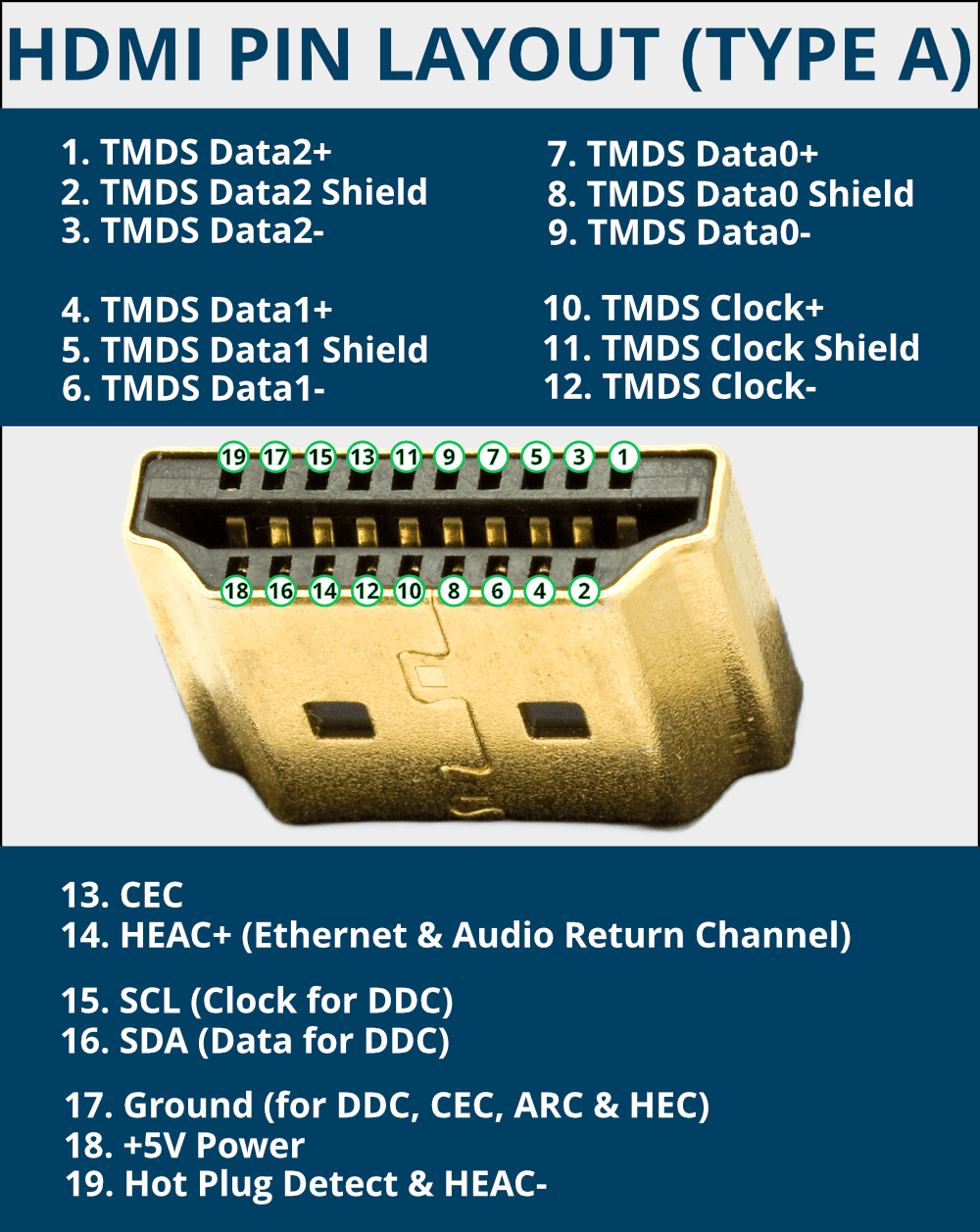
HDMI Pin Outs (Type A Connector)
The main types of communication within HDMI are:
- TMDS: HDMI uses transition-minimized differential signaling (TMDS) to send video, audio and auxiliary data between devices.
- CEC: consumer electronics control allows you to control several devices connected via HDMI with a single remote – such as volume and power commands.
- DDC: the display data channel sends EDID data between devices to communicate which media formats and display modes they support.
- ARC and HEC: HDMI Ethernet and Audio Return Channel (HEAC) were introduced in HDMI 1.4. HEC is a high-speed two-way data link for video, audio, data and Ethernet communication. ARC allows HDMI connections to send audio information back to the source for playback, e.g., a TV can send audio to an AV receiver to hear on a surround sound speaker system.
Type C Mini HDMI connectors also have 19 pins. However, some of the pins are assigned in a different order, so you can buy a type A-to-C HDMI cable if you need to mix and match connectors.
The Micro HDMI Type D connector also has 19-pins, but the assignment for each pin differs from both type A and C cables.
What are HDMI ARC and eARC?
ARC, or Audio Return Channel, is a feature introduced in the HDMI 1.4 specification that allows a device to send data in two directions – video and audio from the source device and audio back to the source.
The main purpose of ARC is to reduce the number of cables required between devices.
In a standard HDMI connection, you can send data from a playback device to a display device.
However, with an ARC connection, you can send audio back down the same HDMI cable allowing home theater speaker systems to play sound from TV apps like Netflix or Amazon Prime easily.
HDMI ARC Connection
HDMI ARC supports stereo PCM and compressed 5.1 audio such as Dolby Digital, Dolby Digital Plus and DTS.
HDMI eARC (enhanced Audio Return Channel) is an improvement over ARC.
It was introduced in the HDMI 2.1 specification and allows for higher bandwidth and better audio quality compared to ARC.
Here are some key points about HDMI eARC compared to ARC:
- Supports higher bandwidth and can transmit up to 192 kHz, 24-bit audio signals.
- Can transmit advanced audio formats like Dolby TrueHD and DTS-HD Master Audio.
- Provides improved lip-sync performance.
- Supports auto-detection of connected devices and can automatically switch to the correct input/output settings.
If you prefer watching videos, here’s a simple summary of the difference between HDMI ARC and eARC:
Что такое HDMI и зачем он нужен в телевизорах
В настоящее время большое количество мультимедийной техники имеет порты HDMI: телевизоры, мониторы, различные приставки, плееры и т.п. Чем таким HDMI заслужил свое обширное распространение, и для чего он нужен на телевизоре, рассмотрим в статье.

Что такое HDMI в телевизоре
Hdmi – это технология, позволяющая передавать многоканальный звук, а также видеоданные в фотмате Hd с высокой скоростью. Над ее разработкой работают многие известные компании: Sony, Phillips, Hitachi, Thomson и др. Кроме того, интерфейс снабжен защитой передаваемых данных от копирования и, помимо звука и изображения, может передавать Ethernet-сигнал, а также управляющие команды.
Кабель HDMI состоит из 19 проводов. Цифровой сигнал передается без сжатия по данному шнуру со скоростью от 4.9 Гбит/сек. К тому же нет необходимости передавать отдельно аудио сигнал, как было в аналоговой передаче данных. Таким образом, можно соединять любую технику при наличии соответствующих разъемов для высокоскоростной цифровой передачи звука и видео.
Зачем может понадобиться такой разъем в ТВ. Современные телевизоры – это уже не просто устройство для просмотра телепередач и кино. Смарт функции значительно расширили их возможности. Наличие большого количества выходов, в том числе порта hdmi, стало необходимостью. Разберемся, для чего нужен hdmi в телевизоре.
Название hdmi означает, что данный интерфейс является мультимедийным интерфейсом высокого разрешения. К телевизору можно подключить компьютер, ноутбук и множество других устройств, и использовать его вместо монитора. Ведь экран ТВ имеет большие размеры, чем монитор ПК. Поэтому смотреть фильм или играть становится гораздо удобнее.
Как выбрать HDMI кабель для ТВ
Для того, чтобы выбрать подходящий шнур, для начала нужно понимать, какая длина нужна. Стандарт предусматривает длину провода от 0.75 до 10 метров. Но при необходимости его можно удлинять с помощью усилителей-повторителей. Причем, чем длиннее планируется использовать шнур, тем толще он должен быть. Но рекомендуемая длина не должна превышать 3 метра. Разъем HDMI выглядит похожим на USB, но со скошенными углами. Присмотритесь к своей технике, вы можете обнаружить несколько таких портов. Перед тем как подключать устройства нужно выяснить, какой именно протокол HDMI поддерживает ваш прибор.
Качество передаваемого сигнала будет зависеть не только от протяженности кабеля, но и от материала, из которого он изготовлен. Существуют разные спецификации кабеля, имеющие различную пропускную способность и другие характеристики, которые будут описаны ниже. На данном этапе следует знать, информацию какого качества и объема предполагается передавать.
Если в вашем телевизоре отсутствуют высокие технические характеристики, нет смысла приобретать провод, предназначенный для передачи очень «тяжелого» видео
Еще одно из преимуществ провода этой технологии – его невысокая стоимость. Но производители идут на различные ухищрения, чтобы повысить цену кабеля. Это может быть наличие ферритовых колец, позолоченных контактов или экранирование золотой фольгой, которые обеспечивают оптимальное качество передачи, и защищают от помех. Однако самый обычный кабель и шнур с такими дополнениями будут одинаково выполнять свои функции, вот почему нет необходимости в приобретении излишне дополненных кабелей.
Классификация и типы HDMI
Кабель по своей структуре состоит из:
- внешней оболочки;
- оплетки или экрана с медными жилами без изоляции для пайки;
- еще одного экрана из фольги;
- оболочки из полипропилена;
- экранированных витых пар для передачи информации;
- неэкранированных витых пар для сигналов SDA SCL;
- других проводящих элементов для питания и управляющих сигналов.
Есть такие понятия как протокол и кабель Hdmi. Протокол – это те правила, по которым передаются данные от источника к приемнику. Версии протоколов постоянно выпускаются новые и, начиная с 2002 года, их насчитывается уже более десятка от 1.0 до 2.1. Сейчас уже их выпускают без нумерации, чтобы не путать пользователей. Что хорошо – все версии имеют обратную совместимость, то есть новые, хоть и имеют больше функций, но отлично взаимодействуют с ранними версиями.

Для поддержки протоколов существует такие виды кабеля:
- Standart. Подходит не для очень требовательной техники. Поддерживает разрешение 720p и не выше 1080i с частотой 60 Гц. Со скоростью передачи не выше 4.9 Гбит/сек, глубина цвета 24 бита.
- High Speed. Поддерживает разрешение 2160p с частотой 30 Гц, может передавать 3D в Full Hd, имеет пропускную способность от 8.16 до 10.2 Гбит/сек, глубина цвета 48 бит.
- Premium High Speed. Может передавать данные с разрешением в ультра-HD (4K), частота 60 Гц. 3D также передается в ультра-качестве. Скорость – 18 Гбит/сек.
- Ultra High Speed. Поддержка разрешения до 8К. На настоящий момент максимальная скорость передачи данных – 48 Гбит/сек, поддерживает все протоколы технологии.
- Standard Automotive Cable – предназначен для использования в транспортных средствах.
В наименовании кабеля может быть Ethernet, что значит, можно с его помощью устанавливать соединение с интернетом
Типы разъемов также могут быть различными, делятся на такие типы:
- А. Полноразмерный HDMI, наиболее часто встречающийся в крупной технике, 19-контактный, может работать с одноканальным DVI-D.
- В. 29-контактный. Совместим с двуканальным DVI-D и практически не используется в быту.
- C или miniHDMI. Применяется для многих портативных устройств.
- D или microHDMI. Имеет еще меньший размер, чем предыдущий тип. Также используется в портативной технике.
- Е или автомобильный. Имеет дополнительный фиксирующий соединитель, который предотвращает разъединение от вибрации, и оболочку для защиты от влаги и пыли.
Существуют кабели для взаимодействия устройств с такими разъемами:

- HDMI-HDMI. Оптимальное подключение к ТВ или домашнему кинотеатру от прочих источников мультимедийного контента: наилучшее качество передаваемой информации.
- HDMI-MicroHDMI и HDMI-MiniHDMI. Отличное решение для передачи данных с небольших девайсов: планшетов, телефонов и т.п. на большой экран с возможностью просмотра в ультра-качестве.
- MiniHDMI-MiniHDMI. Способен передавать данные в 720p, 1080i и 1080. Пропускная способность ограничивается 10 Гбит/сек.
- HDMI-DVI. Используется, если одно из устройств имеет вход более старой технологии DVI. Обычно применяют, когда нужно вывести изображение с ПК или ноутбука на экран ТВ.
При подключении двух устройств одно из них будет работать на вход, а другое на выход (out). И нужно будет включить соответствующий режим приема сигнала. Более подробное подключение и настройку данного кабеля рассмотрим дальше.
Подключение и настройка HDMI кабеля
Для подключения двух устройств, например, ТВ и ноутбука, техника должна быть отключена. Hdmi кабель нужно подсоединить к hdmi разъему ноутбука и ко входу hdmi телевизора. Теперь включаем устройства. По миганиям экрана ТВ, можно понять, что он определил нужное соединение с внешним источником. Телевизор потребуется поставить в режим AVI и выбрать тот вход, к которому подключен кабели (так как HDMI портов может быть несколько).
Теперь на устройстве-источнике нужно настроить изображение. Для этого нужно найти «Разрешение экрана» (меню может быть различным в зависимости от операционной системы) и выставить соответствующее значение. Если автоматически не определился подключенный телевизор, в настройке экрана потребуется нажать «Найти», после чего должно быть найдено подключенное устройство. Теперь надо определить, какой экран является главным, а какой дополнительным.
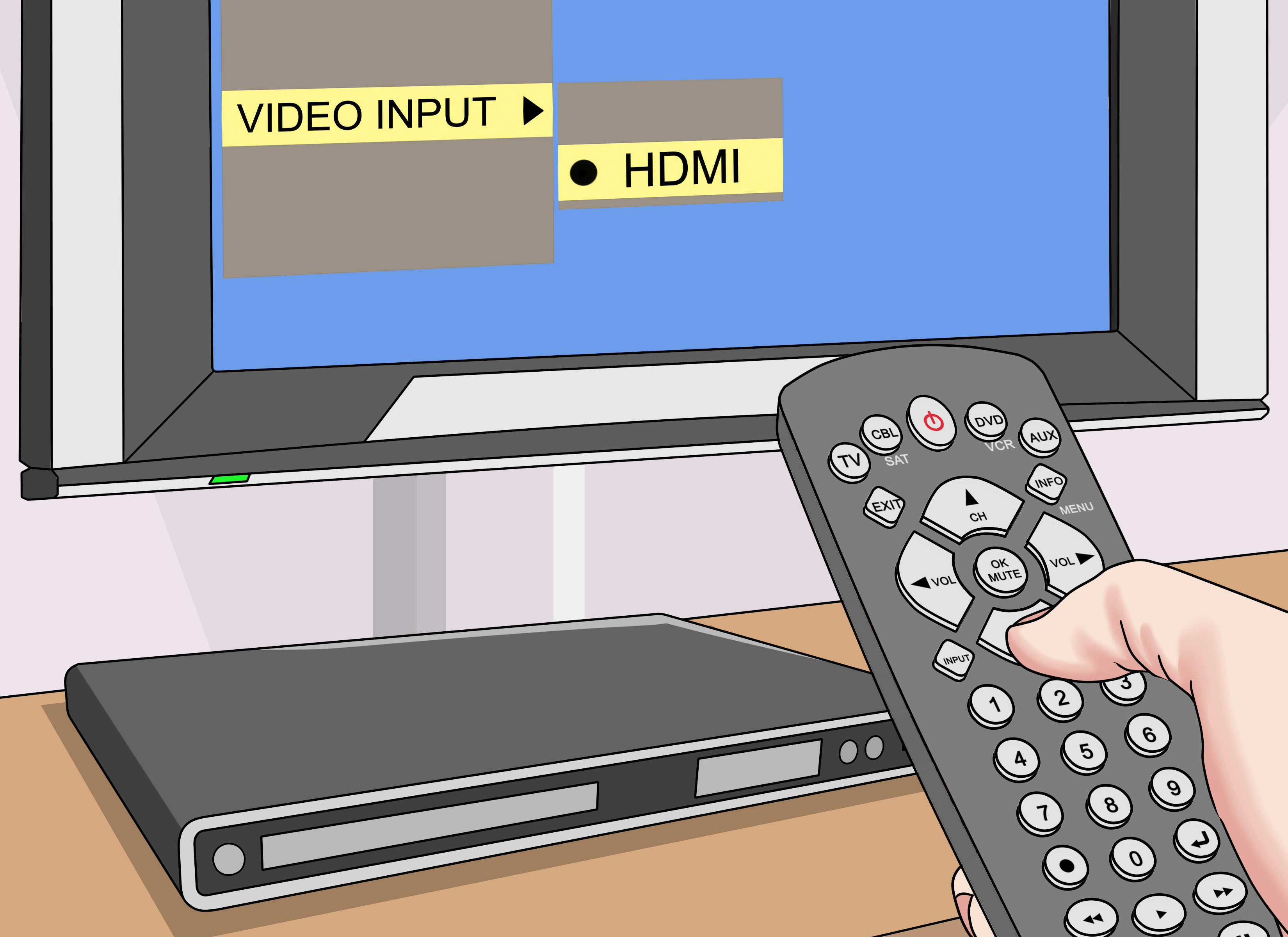
Если вдруг оказалось, что телевизор не передает звучание, то нужно назначить его как устройство, воспроизводящее звук. Для этого на панели уведомлений на ПК, где отображается уровень звука (динамики) нужно выбрать в «Устройствах воспроизведения» вместо динамиков телевизор. Аналогично подключается и монитор к ноутбуку.
HDMI – это очень удобная технология, позволяющая подключать различную технику для передачи аудио и видео информации в высоком качестве без задержек. Наиболее часто применяется для вывода фильмов или игр на экран большего размера. Стоимость такого кабеля невысока, а настройка подключенных устройств не должна вызывать затруднений.