
ROS install
OpenCV install 1. Install essential packages required for OpenCV installation sudo apt-get update sudo apt-get upgrade sudo apt-get -y install g++ sudo apt-get -y install build-essential cmake sud.
Docker install in Ubuntu
Docker install 1. Install essential packages required for Docker installation sudo apt -y install apt-transport-https ca-certificates curl gnupg-agent software-properties-common 2. GPG Key cur.
Ubuntu 18.04 install nvidia driver
Nvidia driver install 1. Download ubuntu driver sudo apt install -y ubuntu-drivers-common 2. Download & install nvidia graphic driver a. Checked recommended driver ubuntu-drivers devices == .
ROS — Robot Operating System
ROS is an open-source robot operating system that helps develop software in robotics. It manages services like hardware abstraction, mapping, motion planning, message passing between nodes, and so on.
This article explains simple steps for installing ROS Noetic on Linux systems. For more details on the installation guide, click here or watch the below Youtube video.
Step 01: Setup your sources list
Open your Linux terminal using the ctrl + alt + t command, and past the following code to link the source list to your Linux terminal.
Step 02: Set Up your Key
Now install curl using sudo apt install curl command and add the ROS package key using the line given below;
Before going through the installation process, always check that your Debian package is up to date. You can check it by using sudo apt-get update command.
Step 03: ROS Setup
After checking the status of your Debian package, You can decide how much you want to install the ROS Package on your system. You can choose based on work requirements, but I will highly recommend installing Full Desktop setup.
- Desktop-Full Installation — Includes Everything with desktop 2D/3D simulator and 2D/3D perception. The command for installing Full Desktop setup: sudo apt install ros-noetic-desktop-full
- Desktop Installation — Includes ROS packaging, build, and communication libraries along with tools like rqt and rviz . The command for installing Desktop setup: sudo apt install ros-noetic-desktop
- ROS Base Installation — Includes only ROS packaging, build, and communication libraries. The command for installing Base setup: sudo apt install ros-noetic-ros-base
Step 04: Environment Setup
You must source a bash file of ROS setup every time you open a new terminal for your ROS system to function correctly. You can source the bash file using source /opt/ros/noetic/setup.bash command your Linux terminal.
You can also store the path of the ROS setup bash file in .bashrc the file.
Note: Make sure to run either source /opt/ros/noetic/setup.bash or source
/.bashrc command before using the ROS methods. Otherwise, you will face different errors.
Step 05: Dependencies
You have installed the core of the ROS package, but for managing your own ROS package, you need to install dependencies based on the requirement of that package. There are a few base dependencies that you can install before creating your own ROS Package. To install tools and dependencies for building ROS Package, run:
To use many ROS tools, you must initialize rosdep . The rosdep package of ROS allows us to easily install system dependencies for the sources we want to compile and is necessary to run some core ROS components. For installing rosdep, run;
Initialize rosdep using sudo rosdep init command.
Step 06: Checking ROS Installation
You can check successful ROS Noetic installation by running the following commands onto your Linux terminal.
After running roscore you will see an output as shown below;
After running the roscore command on your Linux system, if you see no errors, then ROS has been successfully installed.
How to remove ROS setup from Ubuntu 20.04?
If you face some error while running a roscore command, you can delete the ROS setup. After deleting the ROS setup with his dependencies, you can again start with the installation process.
You can delete the ROS package with two different methods as given below;
Method 01:
Method 02:
To Lovely Readers: Kindly highlights the mistakes So I can update them. Hoping this article helps you start your journey as a ROS developer. Do mention your doubts So I can create posts on those as well.
How to Install ROS Noetic on Ubuntu 20.04 LTS
ROS (Robot Operating System) is an open-source project that provides a framework and tools for robotics applications. It helps to design complex software without knowing how certain hardware works.
Noetic is a LTS release of ROS and tailored for Ubuntu 20.04. ROS Noetic support is up to 2025 (5 years). The architecture supported are amd64, armhf, and arm64.
In this tutorial, we will walk through how to install ROS Noetic on Ubuntu 20.04.
1. Add Official Noetic repo to Ubuntu
The first step in installing ROS Noetic is to add the official ROS Noetic repository to Ubuntu 20.04 sources list file.
To add Noetic repo, type:
2. Add official ROS keyring
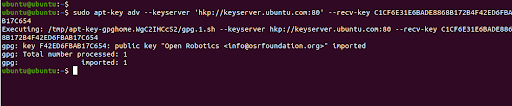
Next, add the official ROS keyring to your Ubuntu 20.04 system. There are two ways to go about this.
The first method is to use the hkp://keyserver.ubuntu.com:80 Ubuntu key server. If this does not work, you can try to replace it with hkp://pgp.mit.edu:80. So, run the command below.
The second method is to use the curl command to download the official ROS keyring and add it locally.
The output “OK”, means the key has successfully been added.
3. Update the ROS package index
Next, we will update our Ubuntu system so as to get the ROS Noetic package information from the repository.
This will sync the newly added repository with the online Ubuntu repositories.
4. Install ROS Noetic on Ubuntu 20.04
ROS has several metapackages that you can choose to install according to your specific needs.
The following are the official ROS Noetic metapackages:
- ros-noetic-desktop-full
- ros-noetic-desktop
- ros-noetic-ros-base
- Ros-noetic-ros-core
Choose your preferred metapackage and install with either of the commands below.
Install ros-noetic-desktop-full
The package ros-noetic-desktop-full comes with all the packages in ros-noetic-desktop and also the perception (ros-noetic-perception) and simulation (ros-noetic-simulators) packages.
To install ros-noetic-desktop-full, run the following command:
After you run the command, press Y to proceed with the installation.
Install ros-noetic-desktop
Ros-noetic-desktop is a minimal version of ros-noetic-desktop-full. It contains most tutorial packages including:
- vis
- angles
- common_tutorials
- geometry_tutorials
- ros_tutorials
- roslint
- urdf_tutorial
- visualization_tutorials
To install ros-noetic-desktop, run the following command:
Install ros-noetic-base
The ros-noetic-base contains only basic packages. It includes the packages in ros_core and other basic non-robot tools such as dynamic reconfigure, nodelets, and actionlib.
To install ros-noetic-base, run the following command:
Install ros-noetic-core
The ros-noetic-core contains a collection of the bare minimum packages. The packages include:
- common_msgs
- gencpp
- geneus
- genlisp
- genmsg
- gennodejs
- genpy
- message_generation
- message_runtime
- pluginlib
- ros
- ros_comm
- rosbag_migration_rule
- rosconsole
To install ros-noetic-core, run the following command:
5. Set up ROS Noetic environment
The next step is to set up ROS Noetic environment. First source the setup.bash script in every bash terminal that use ROS, type:
Add in the .bashrc file located in your home directory to avoid running each time when you launch a new shell:
Verify by running the following command:
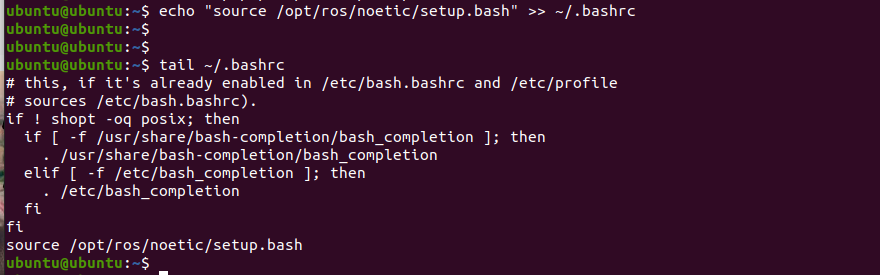
For the changes to take effect, type:
Verify Noetic installation
After successfully installing ROS Noetic on Ubuntu 20.04, simply run the roscd command.
You will notice that the current directory of your prompt changes to /opt/ros/noetic, which is where we installed Noetic.

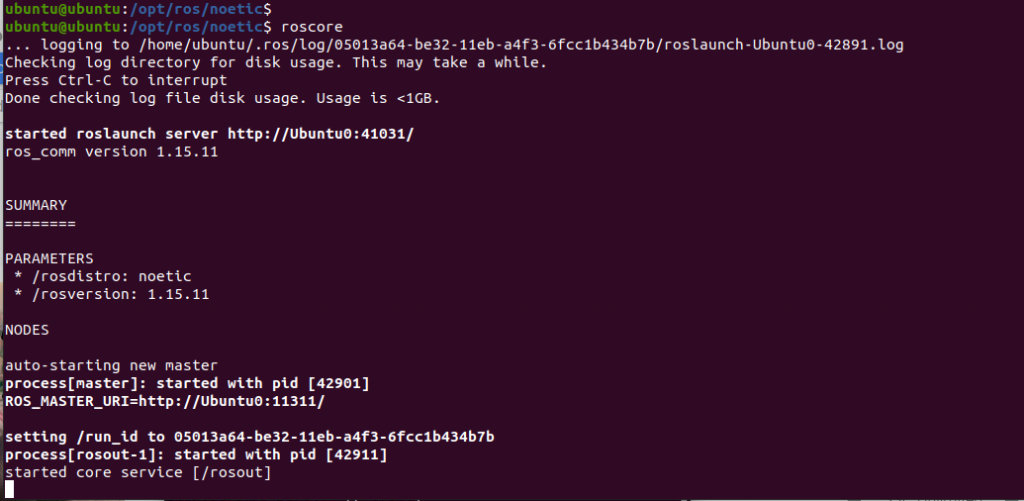
We can also verify the installation by running roscore command in the noetic directory. The output displays the ros distro and the ros version in the summary.
Conclusion
In this tutorial, we learned how to install ROS Noetic on Ubuntu 20.04. Now you can program your robots using Noetic.
If this resource helped you, let us know your care by a Thanks Tweet. Tweet a thanks
Ubuntu install of ROS Noetic
The ROS build farm builds Debian packages for several Ubuntu platforms, listed below. These packages are ready to use so you don’t have to build from source. You can check the status of individual packages here.
Note that there are also packages available from Ubuntu upstream. Please see UpstreamPackages to understand the difference.
If you rely on these packages, please support OSRF.
These packages are built and hosted on infrastructure maintained and paid for by the Open Source Robotics Foundation, a 501(c)(3) non-profit organization. If OSRF were to receive one penny for each downloaded package for just two months, we could cover our annual costs to manage, update, and host all of our online services. Please consider donating to OSRF today.
- Ubuntu install of ROS Noetic
- Installation
- Configure your Ubuntu repositories
- Setup your sources.list
- Set up your keys
- Installation
- Environment setup
- Dependencies for building packages
Installation
Configure your Ubuntu repositories
Configure your Ubuntu repositories to allow «restricted,» «universe,» and «multiverse.» You can follow the Ubuntu guide for instructions on doing this.
Setup your sources.list
Set up your keys
Installation
First, make sure your Debian package index is up-to-date:
To find available packages, see ROS Index or use:
Environment setup
You must source this script in every bash terminal you use ROS in.
It can be convenient to automatically source this script every time a new shell is launched. These commands will do that for you.
Bash
If you have more than one ROS distribution installed,
/.bashrc must only source the setup.bash for the version you are currently using.
zsh
Dependencies for building packages
Up to now you have installed what you need to run the core ROS packages. To create and manage your own ROS workspaces, there are various tools and requirements that are distributed separately. For example, rosinstall is a frequently used command-line tool that enables you to easily download many source trees for ROS packages with one command.
To install this tool and other dependencies for building ROS packages, run:
Initialize rosdep
Before you can use many ROS tools, you will need to initialize rosdep. rosdep enables you to easily install system dependencies for source you want to compile and is required to run some core components in ROS. If you have not yet installed rosdep, do so as follows.
With the following, you can initialize rosdep.
Tutorials
Now, to test your installation, please proceed to the ROS Tutorials.
ROS One-line Installation
Check out this tutorial to install ROS Noetic using a single command.
Wiki: noetic/Installation/Ubuntu (последним исправлял пользователь IsaacSaito 2023-03-04 17:53:42)
- Installation