
How to Safely Shutdown Raspberry Pi
If you are reading this article, presumably you might have faced some issues with your Raspberry Pi due to improper shutdown. Or you are interested in learning the proper methods to shutdown Raspberry Pi from terminal. Anyways, you have come to the right place because in this article I will show how exactly you can shut down or power off your Pi without having any issues.
Since Raspberry Pi does not come with a native power button, your very first instinct is most likely to pull the power cord to turn off your Pi. But I highly recommend you to avoid this as it can cause dire consequences. By doing this, there is a high chance of corrupting the data on your SD card and file system.
Furthermore, if anything is running it won’t make a graceful exit and save. That means when you pull the power cord suddenly before halting your system, it is considered as a forced exit and it may cause serious data loss depending on what your Pi was running at that time.
So, at any cost avoid this practice and do the methods which I’ll show you in a minute.
How to Shutdown Raspberry Pi?
For keeping your board and its file system safe, your Pi should get a clean shutdown. There are a few efficient methods for doing this. They are as follows:
1. Using Raspberry Pi Shutdown Command
If you have a keyboard and a screen, then the easiest method to safely stop a Pi is using a simple command for the shutdown. For this, you need the superuser do (sudo) or power user privilege. But do not fret about it, the default raspberry pi user has such privileges unless you’ve drastically modified your user configuration.
The Raspberry Pi shutdown command is:
The above command is a shorthand for the following (use any one of these):
Explanation:
- sudo – To run its following command as superuser or admin.
- shutdown – The command to shut down Raspberry Pi.
- -h – To halt the system after shut down (and do not reboot).
- now – This means to do it straight away. You can also add a number like 10 to shut down in 10 minutes. You can even give a specific time (in 24-hour format with a colon) at which the system should be shut down. For example, 17:25 will shut it down at 17:25.
Basically, when the command is issued, it will send the SIGTERM signal to all the running processes. This allows the running programs to save and exit gracefully. (The SIGTERM is a generic signal used to terminate the programs)
Subsequently, it sends the SIGKILL signal to cause immediate termination of any remaining processes. (SIGKILL is a signal used to cause immediate program termination) And finally, it will unmount all file systems and you can then pull the power cord safely.
2. Using Raspberry Pi Reboot Command
This is another method that can be used if you wish to shut down and then automatically reboot your Pi. This command-line method also needs the sudo privilege, and the command is as follows:
The above command is a shorthand for the following (use any one of these):
Explanation:
- sudo – To run its following command as superuser or admin.
- shutdown – The command to shut down Raspberry Pi.
- -r – To reboot the system after shutting down.
- now – To do it now. (same as in the shutdown command)
3. Shutdown Raspberry Pi from Desktop
Shutting down a Raspberry Pi graphically is pretty straightforward if you have a monitor connected. Simply click the Menu from the desktop and then choose shutdown as in the screenshot below. Also, this is a method to shutdown raspberry pi without keyboard.
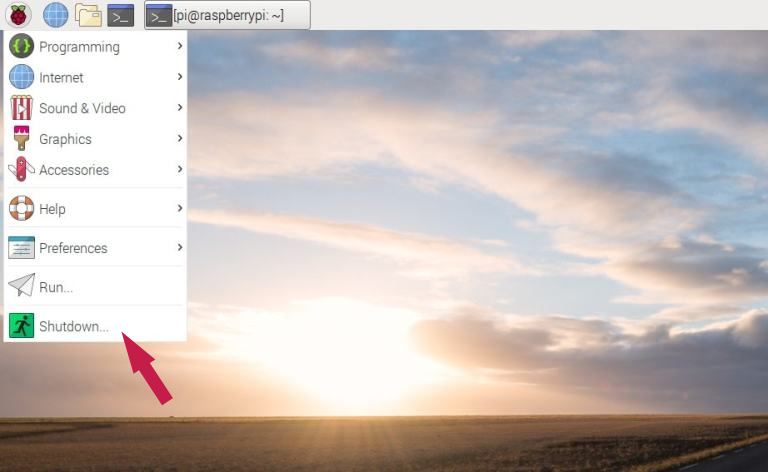
Alternately, you can create a Raspberry Pi shutdown button or safe shutdown switch to properly shutdown Raspberry Pi easily. I will cover this tutorial in the future with detailed instructions and screenshots.
4. How to Shutdown Raspberry Pi Remotely (Via SSH)
This is another method you can use to safely shut down your Pi remotely. Here we use the Secure Shell Protocol to control your Raspberry Pi. For using this method, you need to do the following:
For doing each of the steps below, I’ve written a separate detailed guide. You can click on the links to go to the respective articles and come back to proceed with the rest of the steps.
- Make sure that SSH is enabled on your Pi. . .
- Shutdown Raspberry Pi using any one of the following commands:
How to Turn ON Raspberry Pi After Shutdown?
It’s a piece of cake! Turning your Raspberry Pi ON is a simple task. For this, all you need to do is simply plug the USB power cord into the port of your Pi.
You may also like: Multi boot Raspberry Pi using BerryBoot.
Final Words
Hopefully, from now onwards you won’t pull the power cord anymore to shutdown Raspberry Pi. ��
I’ve tried my level best to explain things clearly and I sincerely hope you got some knowledge from today’s article. If you have any doubts or queries feel free to drop a comment below. Also, let me know your thoughts regarding this article too.
Found an issue with this article? Report it here, so that I can resolve it.
Как выключить или перезагрузить Raspberry Pi
В этой статье мы объяснили несколько способов выключить или перезагрузить Raspberry Pi. Вы можете использовать графический интерфейс рабочего стола, терминал или даже добавить физическую кнопку питания на плату RPi. С учетом сказанного, давайте углубимся и посмотрим на эти методы:
Как выключить Raspberry Pi
Метод 1: графический интерфейс рабочего стола
Если вы используете Raspberry Pi через графический интерфейс рабочего стола (скажем, Raspbian OS), выключить плату настолько просто, насколько это возможно.
1. Просто кликните меню Raspberry в верхнем левом углу и нажмите «Выйти».
Программы для Windows, мобильные приложения, игры — ВСЁ БЕСПЛАТНО, в нашем закрытом телеграмм канале — Подписывайтесь:)
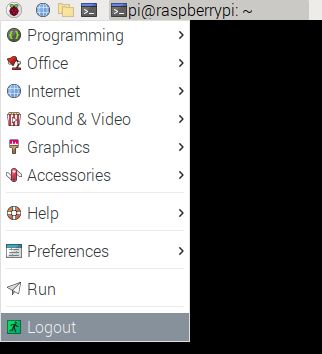
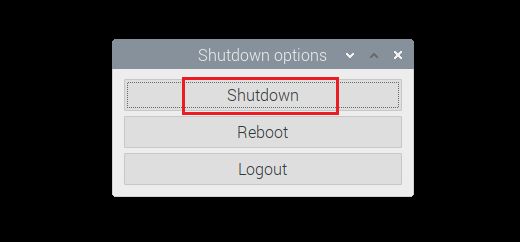
2. Затем нажмите кнопку «Завершение работы» во всплывающем окне, и на этом все. Ваш Raspberry Pi немедленно выключится.
Метод 2: Использование команд терминала
Если вам нравится использовать терминал на Raspberry Pi через SSH или проводное соединение, у вас есть несколько способов выключить Raspberry Pi.
1. Для начала откройте Терминал и выполните любую из следующих команд. Они мгновенно отключат ваш RPi.
sudo shutdown -h now
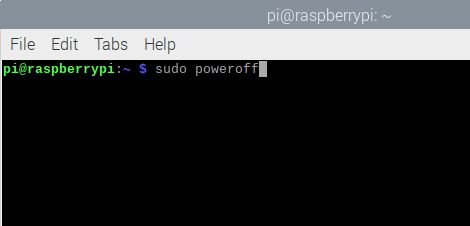
2. Если вы хотите выключить Raspberry Pi через определенный период времени, вы можете определить свой аргумент следующим образом. Здесь 30 означает, что ваш Raspberry Pi выключится через 30 минут. Кроме того, вы можете использовать команду shutdown -c для отмены запланированной операции выключения.
sudo shutdown -h 30
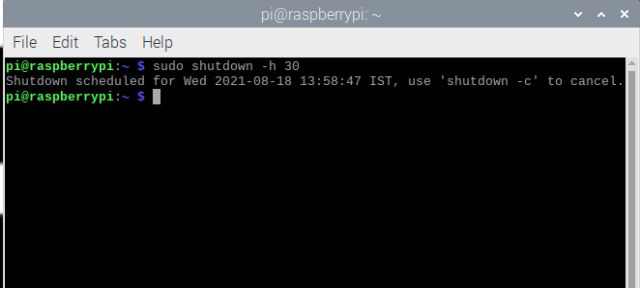
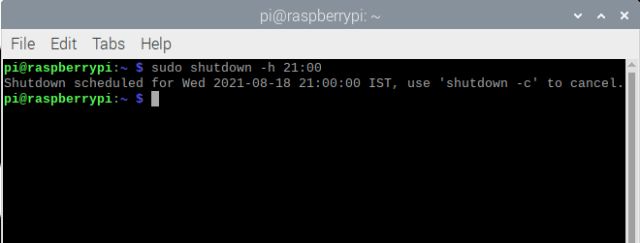
3. Для выключения Raspberry Pi в определенное время, например, в 21:00, вы можете определить команду, указанную ниже. Помните, что Терминал работает по 24-часовой системе часов.
sudo shutdown -h 21:00
Метод 3: добавьте кнопку питания на Raspberry Pi
Если вы опытный пользователь, вы можете добавить физическую кнопку питания через контакты GPIO на плате Raspberry Pi. Также необходимо настроить заголовки GPIO через Терминал. Для получения подробного руководства перейдите к этому страница.
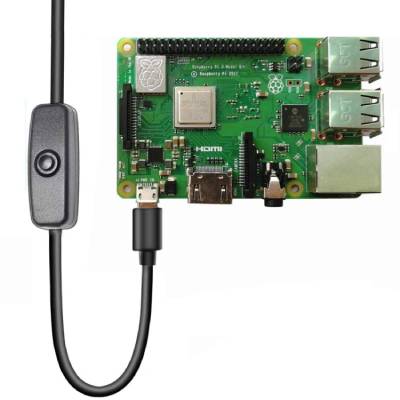
Кроме того, если вам нужно более простое решение, купите кабель переключателя питания USB Type-C на Amazon (7,99 долл. США), чтобы выключить / включить Raspberry Pi без каких-либо проблем.
Метод 4: вытащить вилку
Наконец, если вам лень проходить через Терминал или графический интерфейс рабочего стола, вы можете просто отсоединить кабель питания, чтобы выключить Raspberry Pi. Это мгновенно выключит Raspberry Pi, но мы советуем вам использовать любой из других методов, описанных выше. Тем не менее, убедитесь, что вы сохранили всю свою работу, если вы предпочитаете отключать вилку.
Как перезагрузить Raspberry Pi
Метод 1: графический интерфейс рабочего стола
Подобно процессу выключения, вы можете перезагрузить Raspberry Pi из среды графического интерфейса рабочего стола. Шаги тоже такие же.
1. Откройте меню Raspberry в верхнем левом углу и нажмите «Выйти».
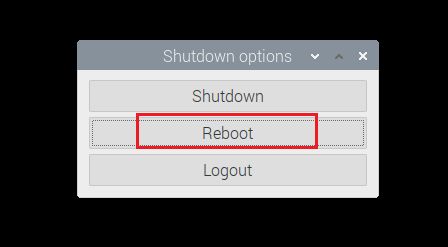
2. Здесь нажмите «Перезагрузить» во всплывающем окне, и Raspberry Pi сразу же перезагрузится.
Метод 2: Использование команд терминала
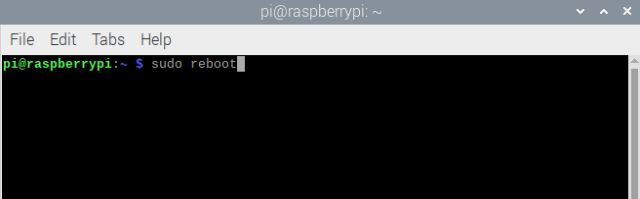
1. Чтобы мгновенно перезапустить Raspberry Pi, запустите Терминал и выполните любую из следующих команд. Эти команды работают через проводное или SSH-соединение, поэтому вы также можете удаленно перезагрузить плату Raspberry Pi.
sudo shutdown -r сейчас
Вот как вы можете выключить Raspberry Pi или перезапустить его с помощью графического интерфейса рабочего стола или терминала. И если вы хорошо разбираетесь в оборудовании, добавление переключателя питания через контакты заголовка GPIO на плате может быть хорошей идеей. Если у вас есть какие-либо вопросы, оставьте комментарий ниже и дайте нам знать.
How to Shutdown Raspberry Pi
Due to an improper shutdown, you may encounter a number of issues with your Raspberry Pi device. If you do not shutdown the device properly, your device will run into some serious problems and that you may not be able to work on it in the future. Your Raspberry Pi device is constantly writing your data to your SD card, and if you unplug it, your data may be lost. Therefore, it is necessary for you to make sure that your critical data is secured when you are using the Raspberry Pi device.
If you’re a beginner and don’t know how to turn off your Raspberry Pi, you’re probably looking for an answer. If you’re finding a safe way to shut down your Raspberry Pi device, this article will guide you in it. If you want to work with your Raspberry device for an extended period of time, all you have to do is choose one of the methods listed below.
How to shut down Raspberry Pi
Here, you will find some methods which will help you to safely shutdown Raspberry Pi so that it can protect your data and make your Raspberry Pi device run for a longer time. Just follow the below methods you will easily be able to shut down your Raspberry Pi device and be able to restart it when you need it without any issue.
1: Shutting down Raspberry Pi using shutdown Command
Everything is fairly simple on the Raspberry Pi terminal, so why are you selecting the incorrect method to shut down your Raspberry Pi? To shut down your device, all you need is a keyboard and a mouse to enter the commands in the terminal. To begin, open the Raspberry Pi terminal and type the command given below.

The -h tag in the above command will provide the instruction to Raspberry Pi to halt the working processes and if you remove -h from the above command, it will directly shutdown the Raspberry Pi without waiting for anything.

If you add the above command and press enter, it will shut down the Raspberry Pi immediately. You can also schedule the shutdown of the Raspberry Pi by using a time of your choice. The command below will start a timer that will shut down your Raspberry Pi after 10 minutes.
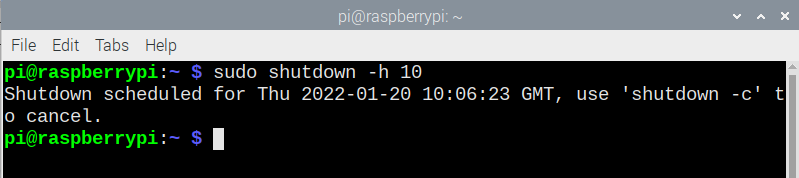
Similarly, you can use the above command without the -h tag and this will put the system to direct shutdown without halting the Raspberry Pi processes. The command is given below.
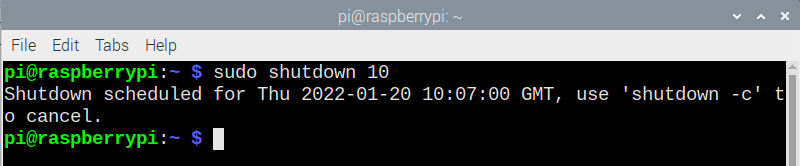
If you want to cancel your scheduled shutdown, you can do it before the 10 minutes through the below command.

2: Shutdown Raspberry Pi using Reboot command
If you are interested in rebooting your Raspberry Pi automatically after the shutdown, there is a method you can do it within no time. The only thing you have to do is to type the below command in the terminal and press enter.

You can set the timer to reboot your device through the below command, which will shutdown the Raspberry Pi after 10 minutes and then reboot it after the shutdown. If you immediately want to shut down and reboot your Raspberry Pi, you need to replace “10” with “now”.
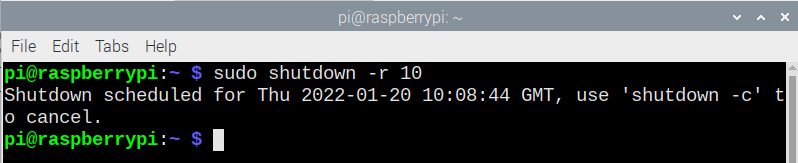
If you want to schedule the shutdown on a given time you can do that quite easily through the below command.

3: Shutdown Raspberry Pi through Desktop
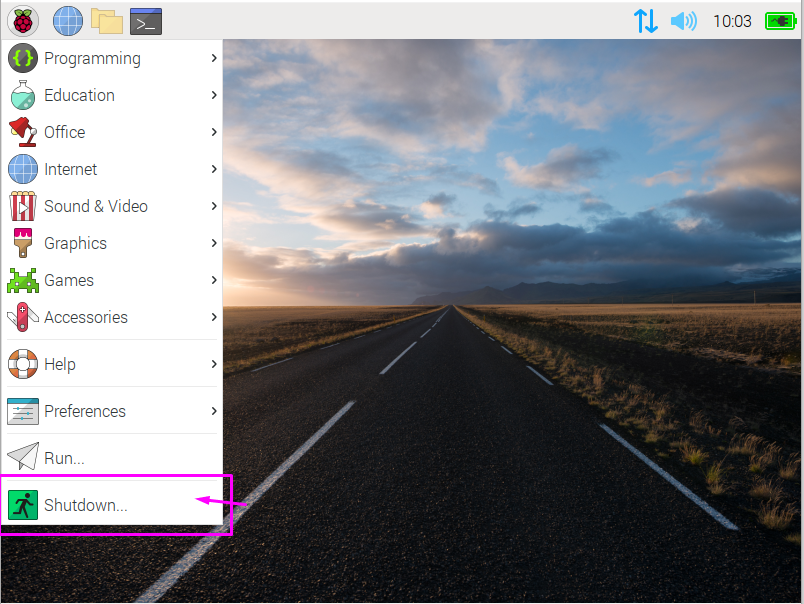
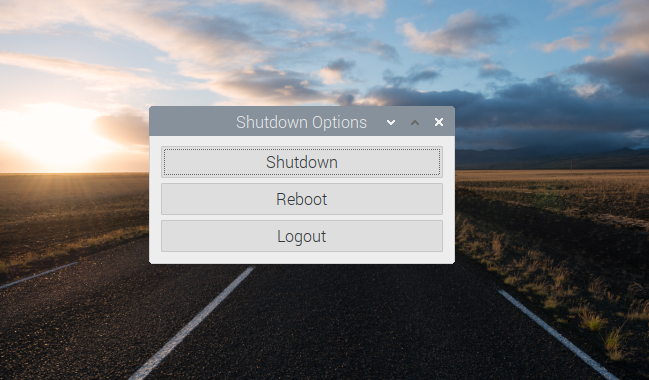
There is another method which everyone can easily find and is the easiest solution to shutdown their Raspberry Pi. Raspberry Pi can also be shutdown through the desktop. For that you have to go to the menu option and there you will find the “Shutdown” option. Just click on the option and it will give you the choice to shutdown or reboot your device or to cancel the process.
Conclusion
You now have enough knowledge on how to protect your Raspberry Pi device by safely shutting it down, thus eliminating the need to shut down the device by unplugging it. You can shut down your device remotely, but you must follow some procedures that are difficult for beginners to understand. Furthermore, you can create your own power button with your Raspberry Pi device; however, this requires additional effort and is difficult for someone who is new to Raspberry Pi. The above methods are the simplest methods to shut down your Raspberry Pi device.
About the author

Awais Khan
I’m an Engineer and an academic researcher by profession. My interest for Raspberry Pi, embedded systems and blogging has brought me here to share my knowledge with others.
6 Ways to Shut Down Your Raspberry Pi
Raspberry Pi enthusiasts have consistently come up with innovative ways to use their mini computer. What’s great about it is, “ its ‘tinker-ability .’” You get the most basic resources of a computer.
It’s easy to get stuck on the simple things, however, including how you can safely power down your Raspberry Pi. We’ve compiled some tips and a list of resources to help you optimally shutdown your system.
Should I just pull the plug?
No, it’s not recommended to just pull the plug. This can cause a variety of issues including corruption of your SD card and file system. It’s important that your Raspberry Pi gets a clean shutdown. There are easy ways to do this and some fun projects that you create to ensure a shutdown without unplugging your device.
Shutting down your Raspberry Pi from the terminal
If you have a keyboard and a screen, then the easiest way to shutdown your Raspberry Pi is by using this code in the command line:


This will give you a clean shutdown. After that, you can unplug the computer.
Creating a shutdown button
Unlike your other electronic devices, Raspberry Pi doesn’t come with an “off” switch. However, you can create a switch that acts as a shutdown button for your computer. If you’re running “headless (no keyboard or display)” then adding some kind of “off” switch or button will let you shutdown without unplugging.
The coding and setup instructions can be found at the Raspberry Pi site .
How to turn off without a keyboard 
If you’re not using a keyboard then you can shut it down via the menu options.
Press start → select shutdown → turn off the pi
The menu will let you safely shutdown and you can proceed to unplug your device.
Using SSH (Secure Shell)
You can access your Raspberry Pi’s command line from another device if you use an SSH on the same network. It can act as a remote device – you can connect to it from another machine. Once set up, you’ll be able to shutdown your Raspberry Pi from another computer or device if more convenient when working on different projects. The Raspberry Pi site discusses the use of SSH with your device .
SSH will also allow you to shut down from a mobile device – not just another computer. This can be useful when you are wanting to shut down a program that your Raspberry Pi is running, but you cannot access it for different reasons.
ThisDaveJ.com has a great tutorial showing how to control a Raspberry Pi from a mobile device. Check it out .
Voice command
Though there are some easy methods to shutdown, you have lots of options to play around with your coding.
One fun method is by using voice commands to turn off your Pi. As techradar says, “Make your own Alexa.” This can be done with a microphone and some coding. You’ll be able to give a list of commands to your Raspberry Pi when you’re finished, not just to shut off.
Read the step-by-step instructions at techradar.
And a paperclip?
Yes, you can even shut down with a paperclip . Paperclip isn’t a euphemism for some code work, it’s literally a paperclip that you probably have on your desk. It acts as a switch that you can use to turn your device on or off.
How to turn on Raspberry Pi after shutdown
It’s simple. Just plug it in. You don’t need to write code or create a button. After you have safely shutdown your Raspberry Pi, unplug it. When you’re ready to turn it on again you can just plug it back in.
If you want to leave your computer plugged in, then you can use some of the ideas above as methods to turn it on with a few minor tweaks.
Getting started 
One of the best parts of having a Raspberry Pi is the endless amount of customization and applications you can create. We wanted to touch on a seemingly simple topic – how can I shut it down – but as you can see, a simple process can turn into a fun project.